
Tasks
Tasks are one of the features in Nobox.Ai used for managing team or individual tasks. You can manage all activities, user tasks, or tasks assigned to others.
.png&w=3840&q=75)
On the display, there are several sections, each with its own function. The explanations of these functions are as follows:
| Features/Buttons | Function |
|---|---|
 | Used for adding boards. |
 | Used for adding tasks. |
 | Used for displaying pop-up to edit or delete board data. |
 | Used for display in kanban form. |
 | Used for displaying in calendar form. |
 | Used to display in list form. |
Add Board
To add board data, please click the [ ], button to display the [Add Board] dialog.
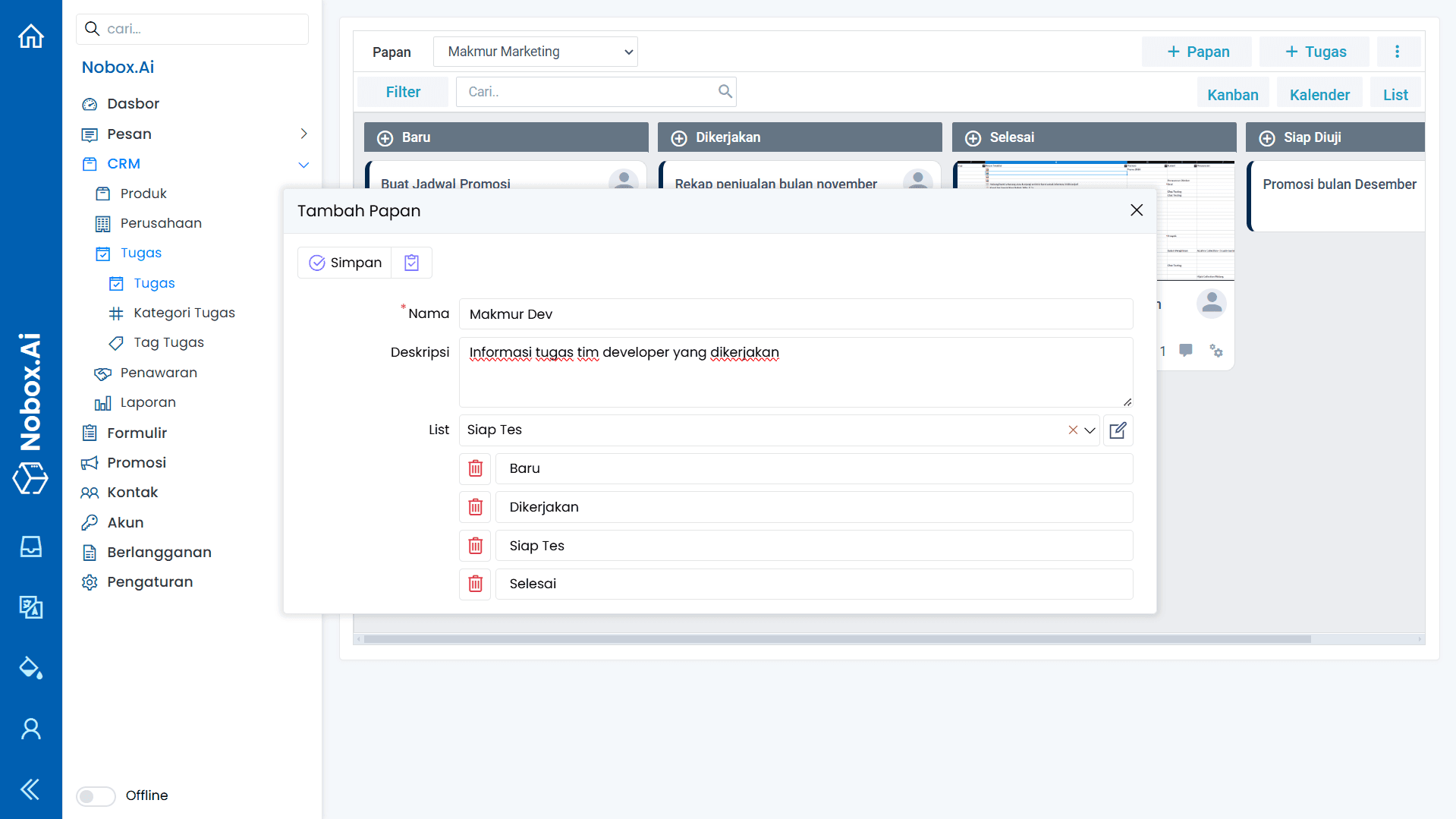
Fill in the required fields, for example, as follows:
| Entry | Description | Example |
|---|---|---|
| Name | Board Name | Makmur Dev |
| Description | Board Description | Information on the tasks the developer team is working on |
| List | Task stages | New, Working, Ready to Test, Done |
If you have completed the form, click [Save] to save the newly created board data.
Edit and Delete Board Data
To edit a board data, first select the data you wish to edit. Click the [ ] icon, a pop-up will appear; choose the [Edit] button, edit your data, and then click [Save] to apply the changes.
To delete a board data, select the data you want to delete, then click the icon [ ] to display a pop-up. Choose the [Delete] button, and a confirmation dialog will appear asking if you want to delete the data. Click [Yes] to confirm or [No] to cancel.
Add Task
To add a task, please click [ ] and the [Add Task] dialog will appear.
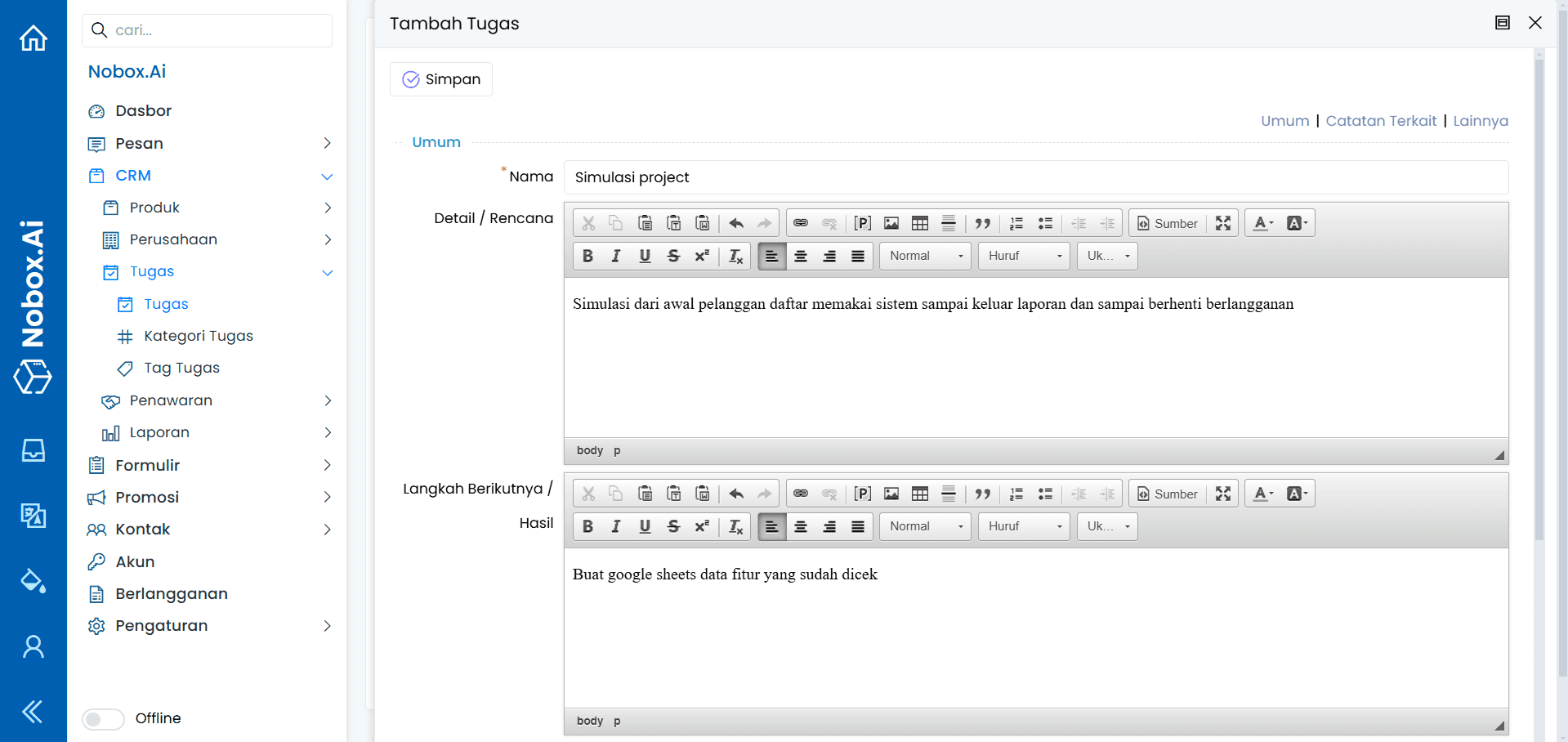
Complete the required fields, for example as follows:
| Entry | Description | Example |
|---|---|---|
| Name | Task Name | Project Simulation |
| Detail/Plan | Task details/plans | Simulation from the beginning when a customer registers to use the system until the report is issued and until the customer stops subscribing. |
| Next Steps/Results | Next steps or task results | Create a google sheet of checked feature data |
| Attachment | Task Attachment | - |
| Owner | Task Owner | Jasmine |
| List | Task List | New |
| Category | Task Category | Development |
| Priority | Priority Level | High |
| Tag | Task Tag | Simulation, Project |
| Start Date | Deadline | 09-11-2024 |
| End Date | End of time limit | 12-11-2024 |
| Contact | Contact who is working on the task | Wara |
| Company | The company that carried out the task | PT. Indodrink |
| Transaction | Transactions related to the task | Wara Indodrink Deals |
If you have completed the fields, click [Save] to save the task data you just created.
Edit Dan Delete Task Data
To edit a task data, please first select the data you wish to edit. Edit your data and click [Save] to save the changes.
To delete a task data, first select the data you want to delete, then click [Delete]. A confirmation dialog will appear asking if you want to delete the selected data. If yes, click [Yes]; if not, click [No].
Comment
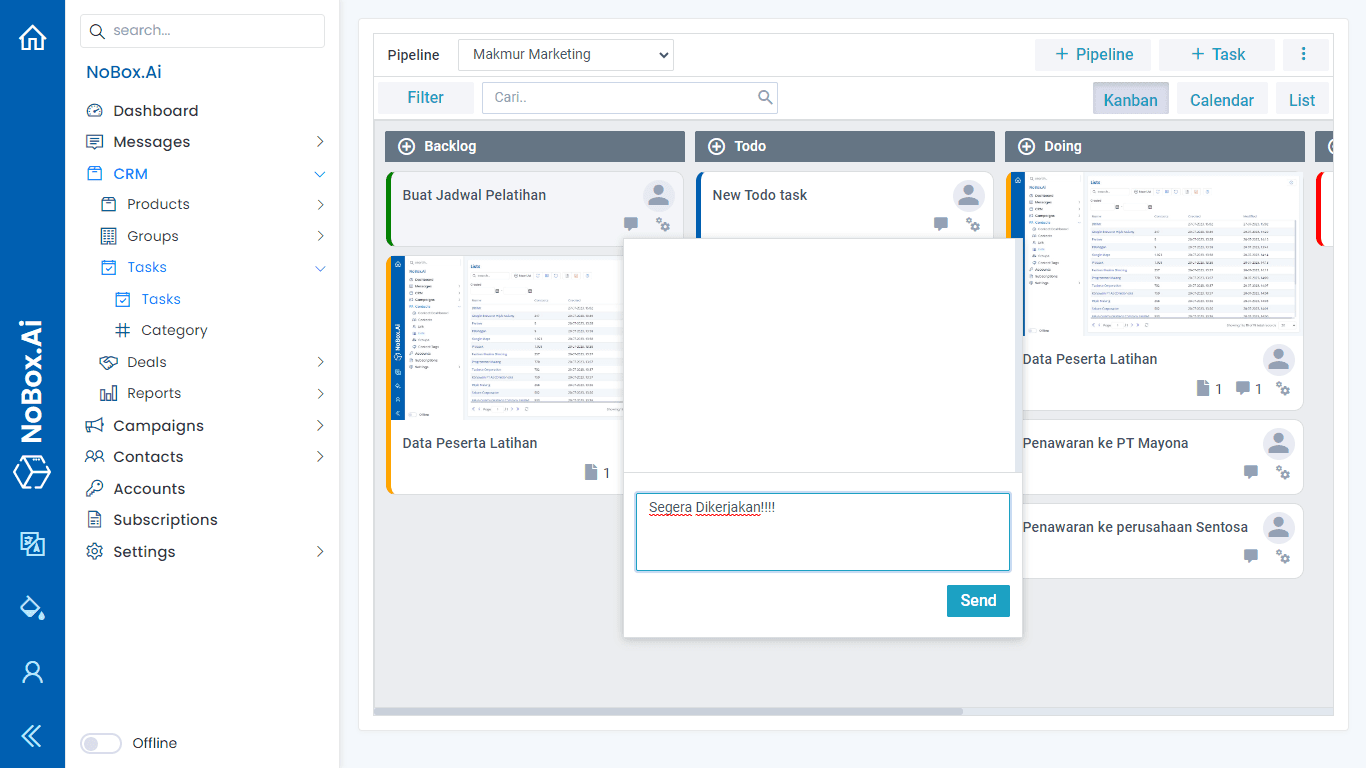
Comments are one of the features of Nobox.Ai used to provide opinions, responses, or feedback on the task.
Add Comment
To add a comment, click the [  ] icon to open the comment dialog. Enter your comment and click the [Send] button to submit it.
Edit and Delete Comment
To edit a comment, first select the data you wish to edit. Then click the icon [ ], which will display a pop-up with Edit and Remove options. Choose the [Edit] button, make your changes, and click [Send] to save them.
To delete a comment, select the data you want to remove. Then click the [ ] icon, click [Remove], and a confirmation dialog will appear asking if you want to delete the data. If yes, click [OK]; if not, click [Cancel].
Copy Task
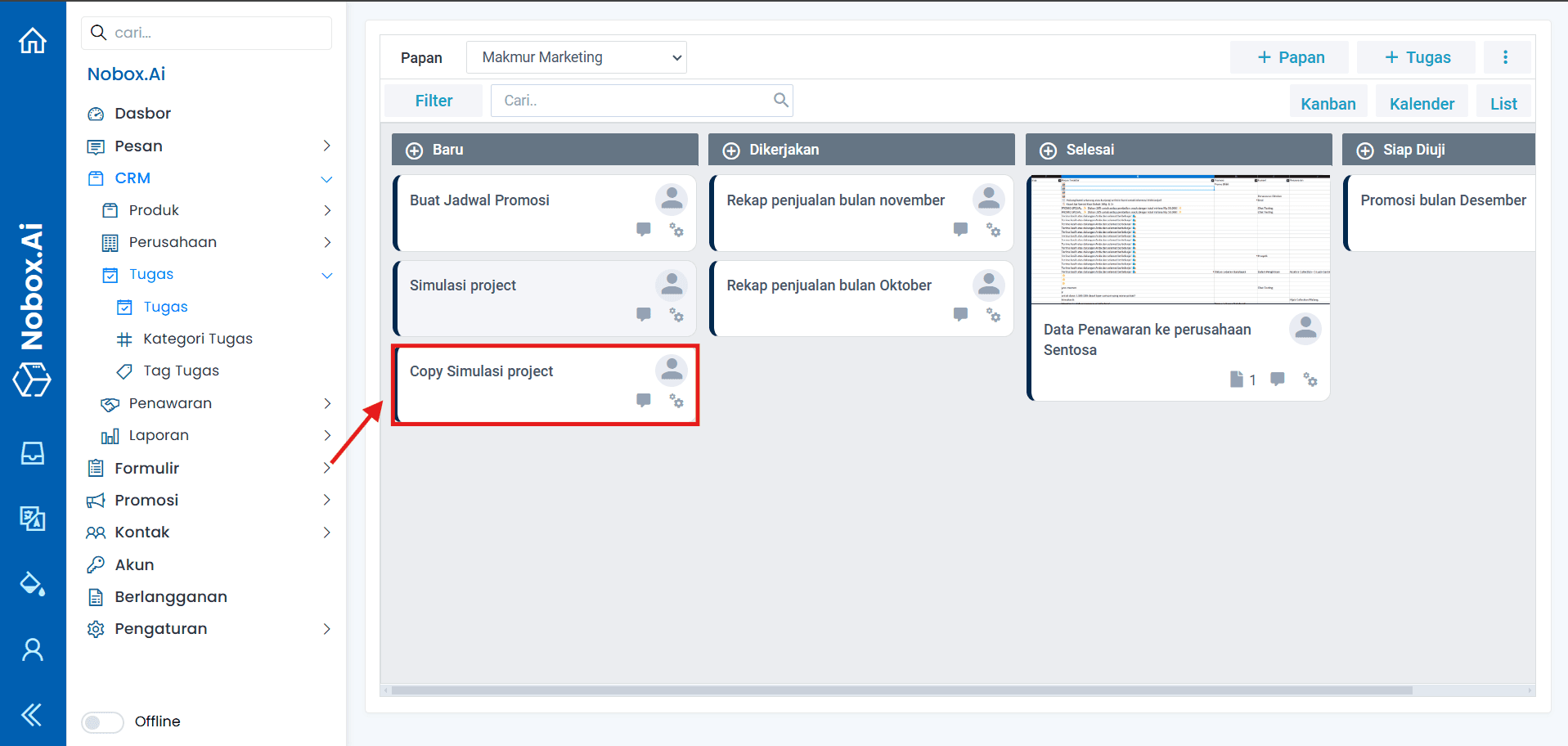
The assignment copy feature allows you to easily duplicate your task data. To copy task data, click the icon [  ] and select [Copy]. The task data will then be duplicated.
If you encounter any issues or difficulties with Nobox.Ai, please contact us via Support Ticket