
Human Agent
Human Agents at NoBox.Ai serve as the control center for managing all human users who have access to your platform. This feature allows you to invite team members, assign roles, and manage their access rights. If AI Agents are virtual robots, then Human Agents are your real-world team—such as customer service staff, managers, and administrators—responsible for operating, supervising, and managing customer interactions.
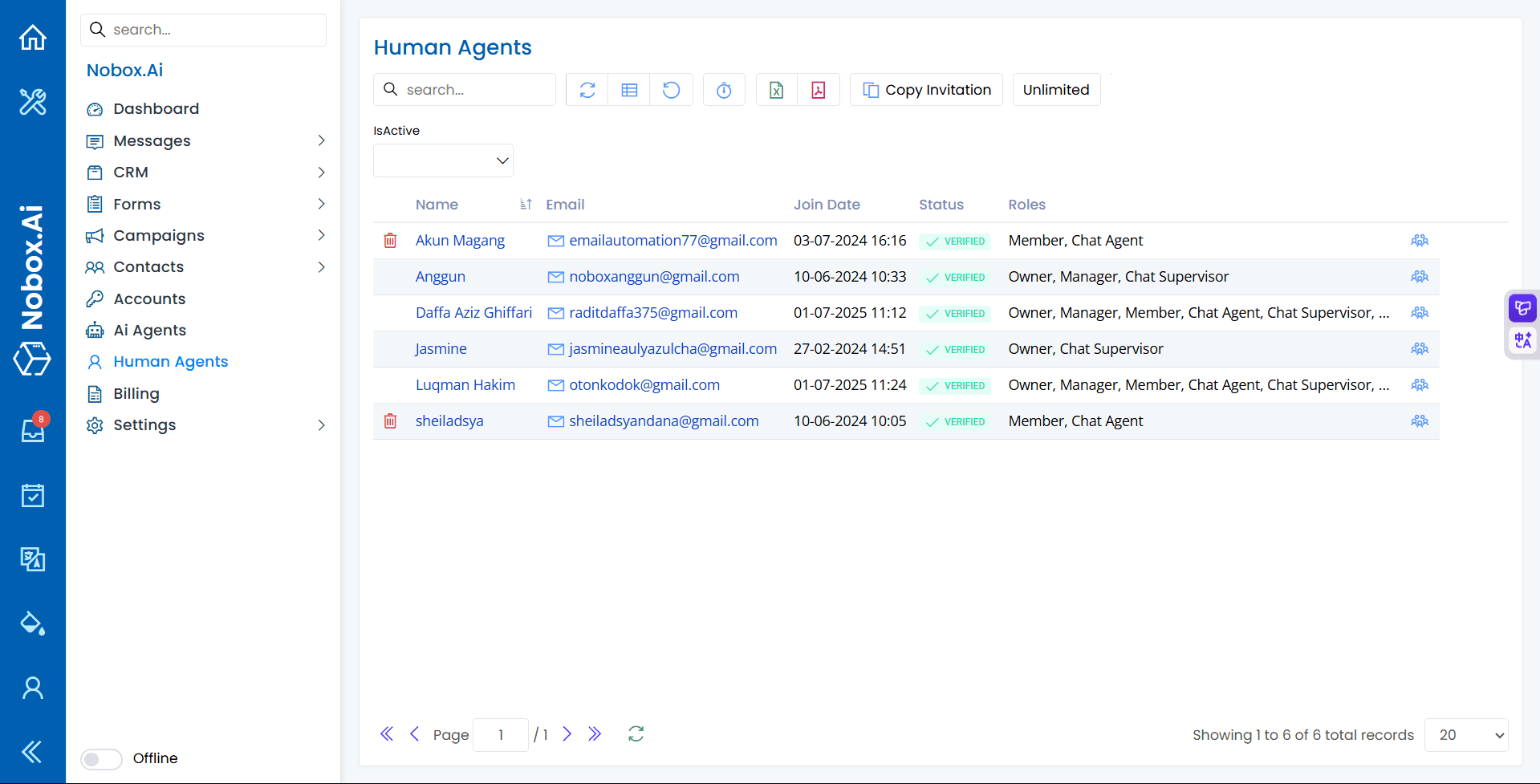
On that display, you can see a list of all agents along with their details. Here is an explanation for each main column:
| Column | Function |
|---|---|
| Name & Email | Unique identity of each agent. The name is used for internal identification, while the email is used for login and notifications. |
| Join Date | The date and time when the agent first joined or registered on the platform. |
| Status | Shows the agent account verification status. Status VERIFIED means the agent has successfully confirmed their email and their account is fully active. |
| Roles | The role or position that determines the level of access rights an agent
has within the system. For example: |
Inviting New Agents
Adding Human Agents is done through an invitation system to ensure security. To invite a new agent, please click the ➔ [Copy Invitation] button. This will copy a unique invitation link. Send this link to prospective team members. Once they register via the link, their accounts will automatically be added to the Human Agents list with [VERIFIED] status. The [Unlimited] label next to it indicates that you can invite as many agents as you need without any quota limits.
Edit and Delete Human Agent Data
To edit a Human Agent's data, please first select the data you want to edit (for example, by clicking on the agent's name). Edit the data such as roles and click [Save] to save the changes. To delete a Human Agent's data, select the Human Agent data you want to delete, then click the Delete (trash can) icon, and a confirmation dialog will appear asking if you want to delete the data. If yes, click [Yes] if not, click [No].
If you have any issues or difficulties related to Nobox.Ai, please contact us through Support Ticket