
Companies
The "Company" feature in CRM NoBox.Ai is used for managing information and activities related to a customer's company or business.
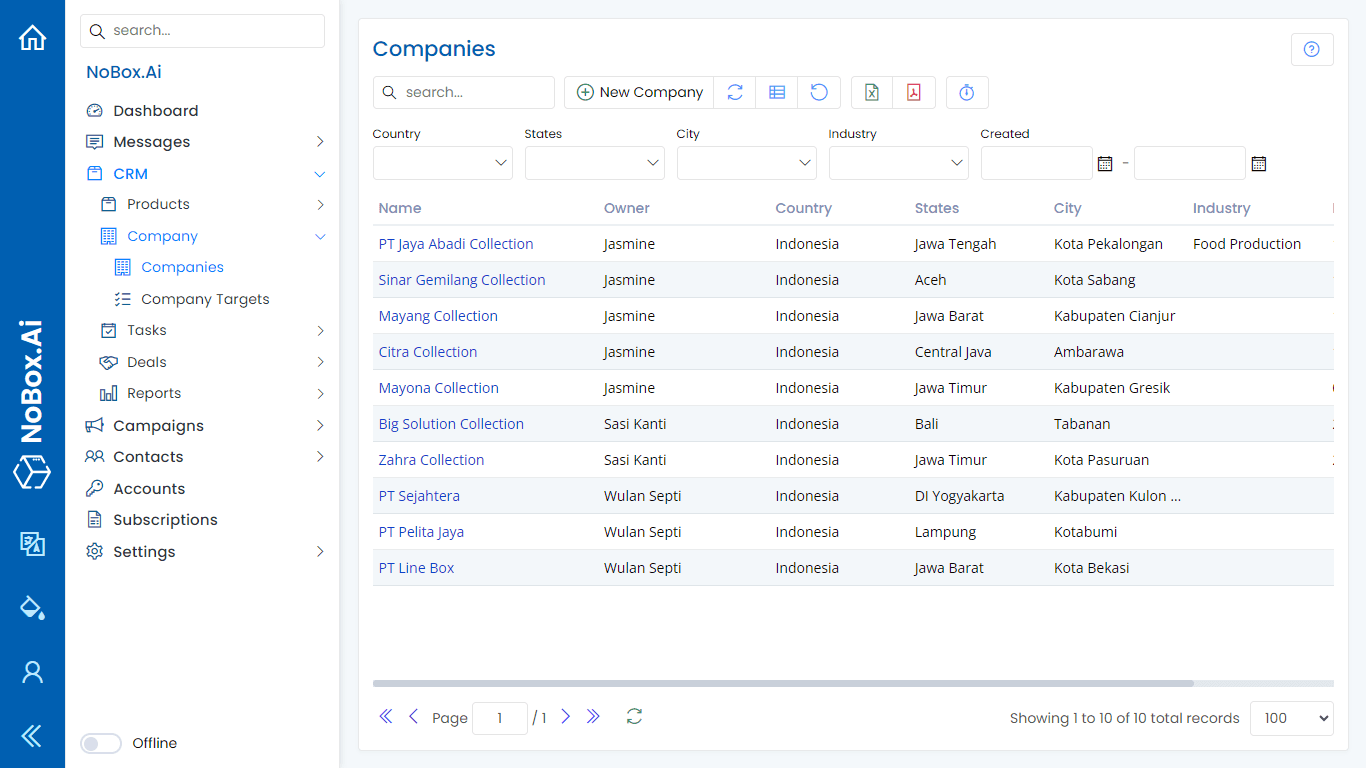
Add Company
To create company data, please click the [CRM] ➔ module, select the [Company] ➔ [Company] ➔ [Add Company] menu. A [Add Company] dialog will appear; fill in the required fields in the dialog.
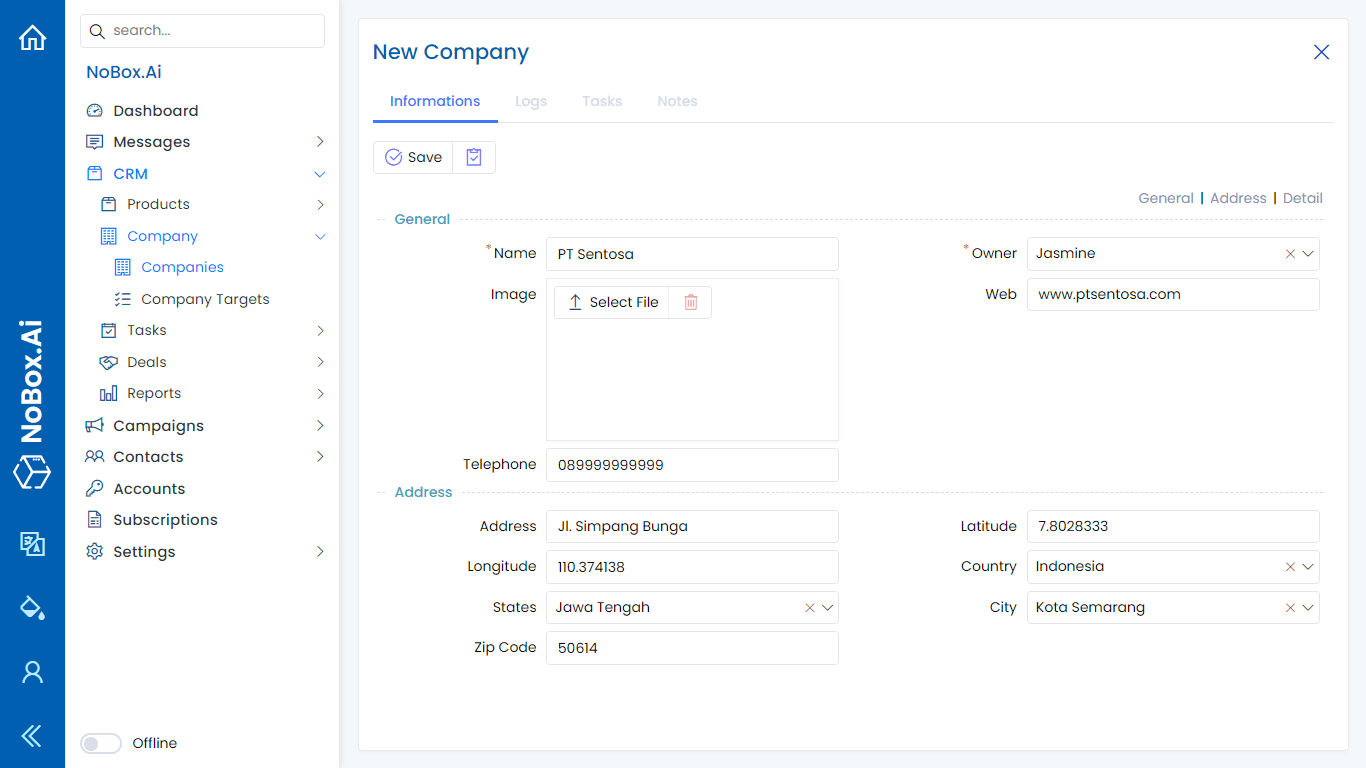
| Entry | Description | Example |
|---|---|---|
| Name | Company Name | Naysa Collection |
| Owner | Company Owner | Ita Putri |
| Image | Company image | - |
| Website | Company Website | www.nasya.com |
| Telephone | Telephone Number | 0823569 |
| Country | Company Country | Indonesia |
| Province | Company Province | East Java |
| City | Company City | Malang City |
| Postal code | Postal Code | 65165 |
| Address | Company Address | Jl.Ikan Hiu |
If you have completed all the fields, click [Save] to store the newly created company data.
Edit and Delete Company Data
To edit a company data, first select which data you want to edit. Edit your data and click [Save] to save the changes. To delete a company data, select the company data you want to delete, then click [Delete]. A confirmation dialog will appear asking if you want to delete the data. If yes, click [Yes], if not, click [No].
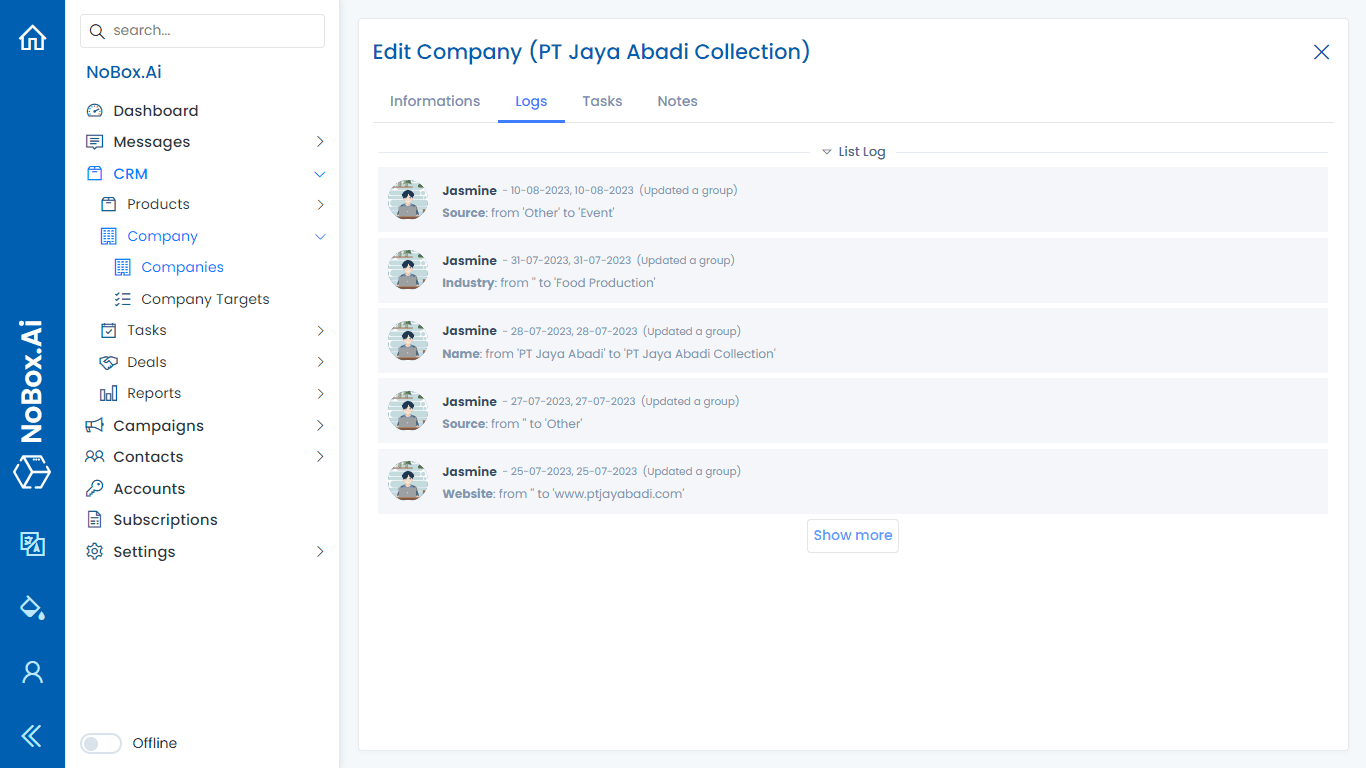
Log
Log is one of the features of NoBox.Ai that provides information on activities related to the company.
Tasks
Tasks are one of the features of NoBox.Ai used for task management related to the company.
.png&w=3840&q=75)
Add Tasks
To create a task data, click the [Company] menu and select the company you have created. Then click the [Task] ➔ [Add Task] tab. A [Add Task] dialog will appear, then complete the fields in the dialog.
.png&w=3840&q=75)
| Entry | Description | Example |
|---|---|---|
| Name | Task Name | Make Ramadan Promo Offers |
| Details/Plans | Task details/plan | Registering and contacting customers who register for training |
| Next Steps/Results | Next steps or results of the Task | Create a training schedule |
| Attachment | Assignment Attachment | - |
| Owner | Select the Task owner | Jasmine |
| Finished | Checklist if the task is completed | |
| List | Select Task List | New |
| Category | Select Task Category | Big Promotion |
| Priority | Priority Level | Medium |
| Tag | Task tag | Sale |
| Start Date | Deadline | 10-05-2024 13:00 |
| End Date | End of time limit | 15-05-2024 15:00 |
| Contact | Select the related Contact | Jasmine |
| Company | Select the related Company for Task | Azahza Collection |
| Transaction | Select The transaction | PT Sentosa Deals |
If you have completed the entries, click [Save] to save the new tag data you just created.
Edit and Delete Task Data
To edit a task data, please select the data you wish to edit. Edit your data and click [Save] to save the changes. To delete a task data, select the task data you want to delete, then click [Delete]. A confirmation dialog will appear asking if you want to delete the data. Click [Yes] to confirm, or [No] to cancel.
Note
Notes is a feature of NoBox.Ai used to display notes.
.png&w=3840&q=75)
Add Note Data
To create a note, you can type directly into the section [  ]. Once you've entered your note, please click the button [
  ] to save it.
Edit and Delet Note Data
Only NoBox.Ai Supervisors can use this feature. Agents can add notes but cannot edit or delete them.
To edit a record, please click the icon [  ] next to the record you want to edit. Edit the record and click the send button or press enter on your keyboard to save the changes. To delete a record, please click the [
  ] icon next to the record you want to delete. A confirmation dialog will appear asking if you want to delete the record. If yes, click [Yes]; if not, click [No].
If you encounter any issues or difficulties related to NoBox.Ai, please contact us at Support Ticket