
Task Tags
Task Tag is a feature in Nobox.Ai used to categorize your task data.
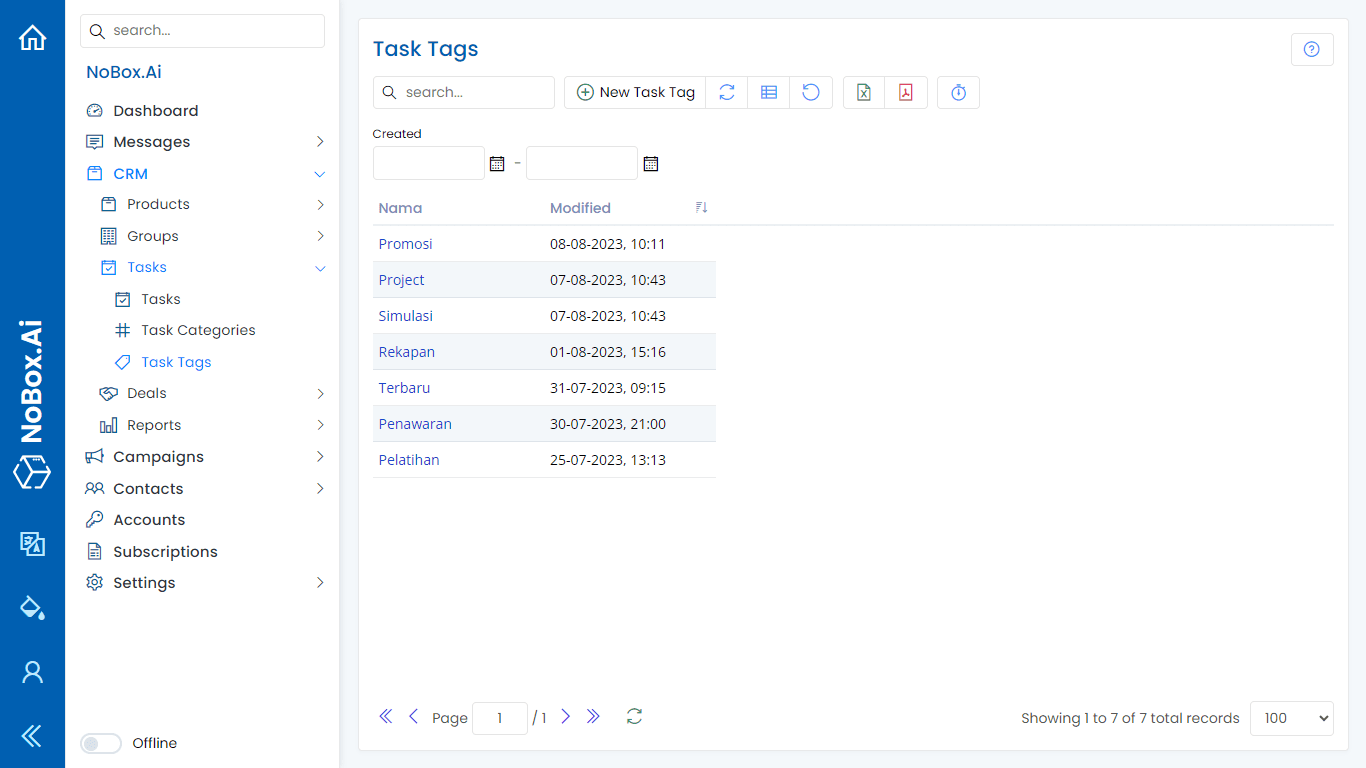
Add Task Tag Data
To create a task tag, click the [CRM] module, then select [Tasks] ➔ [Task Tags] ➔ [Add Task Tag]. The [Add Task Tag] dialog will appear, where you can enter the tag name.
.png&w=3840&q=75)
If you have entered the tag name, click [Save] to store the newly created tag data.
Edit and Delete Task Tag Data
To edit a tag data, please first select the data you wish to edit. Edit your data and click [Save] to save the changes.
To delete a tag, select the tag you want to remove, then click [Delete]. A confirmation dialog will appear asking if you want to delete the selected tag. If yes, click [Yes], otherwise click [No].
How to Use Task Tag
1. Open the [Tasks] menu, select an existing task or add a new one.
2. Selecting the field in the tag column will display previously created tags.
3. Select one or more of these tags and click [Save] to save the task data again.
.png&w=3840&q=75)
Filter Task Tag
Filter tags are used to sort task data and display data based on the selected tag. Here’s how to filter task data:
- Open the [Tasks] menu, click the [Filter] button ➔ click [Tags] select the tag data you want to search for and click [Show]. The filtered data will then be displayed.

If you encounter any issues or difficulties with Nobox.Ai, please contact us through Support Ticket