
Quick Replies
Quick Replies is one of the menus in NoBox.AI used as message templates to respond more quickly, either in the form of text messages or media such as images, GIFs, and videos.
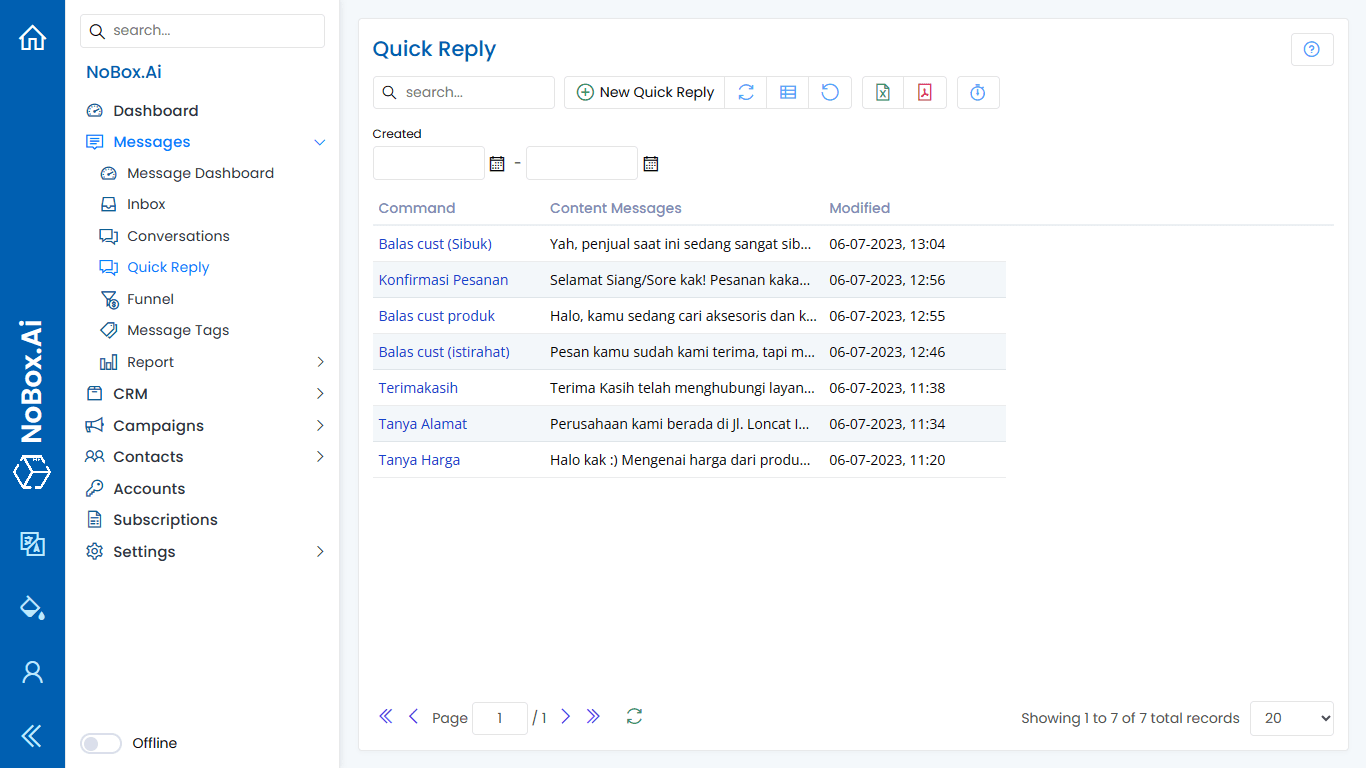
Add Quick Reply
To create a quick reply, please click the [Quick Replies] menu ➔ [Add Quick Reply].
The [Add Quick Reply] dialog will appear, then complete all the required fields in the dialog.
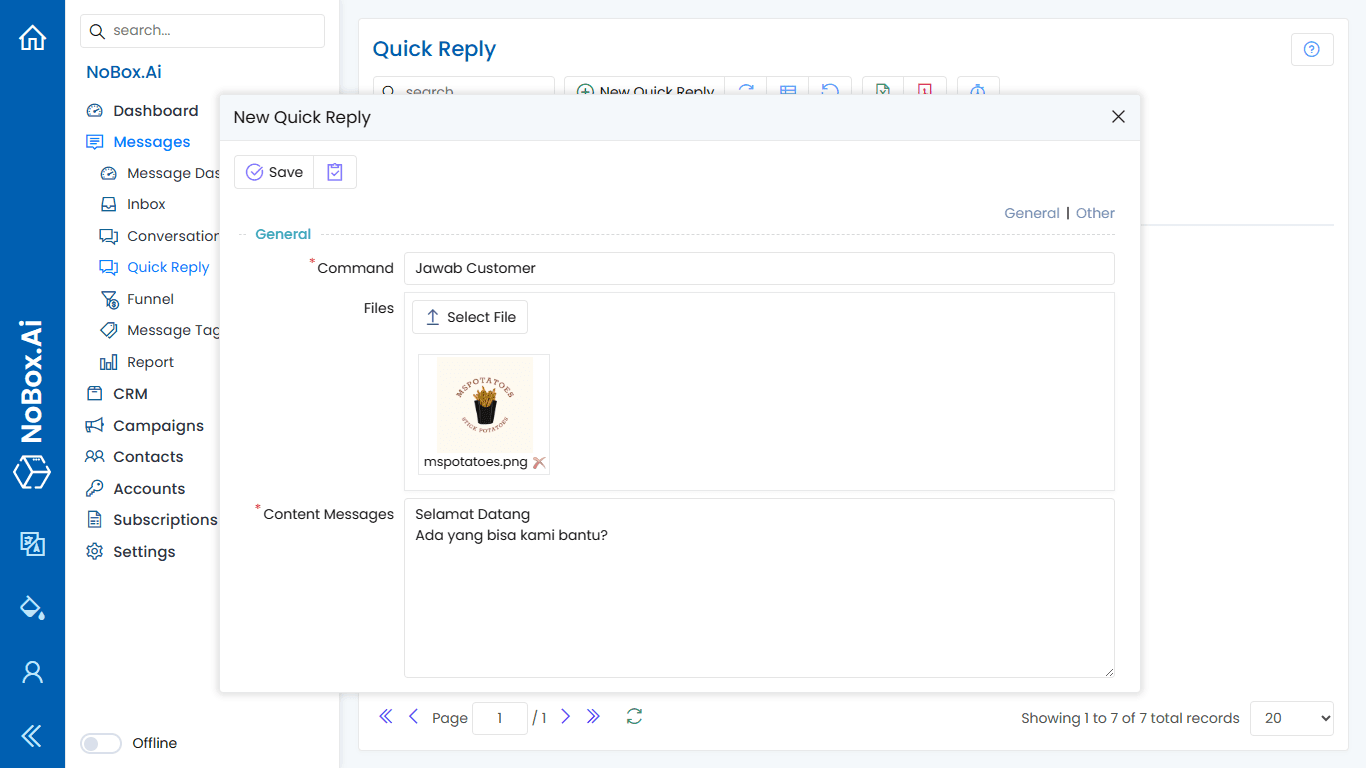
| Field | Description | Example |
|---|---|---|
| Command | Reply command | Account |
| File | Select file | |
| Type | Reply type | General |
| Message Content | Message body | Payment can be transferred to Bank BCA xxx.xxxx.xxx a.n. Ana or Bank Mandiri xxx-xx-xxxx-x a.n. Ana. After the transfer, please send the proof of payment to WhatsApp 0810000-0000. |
After completing all the fields above, click [Save] to store the data.
Edit and Delete Quick Reply Data
To edit a quick reply, first select the data you want to edit. Make the necessary changes and click [Save] to save them.
To delete a quick reply, select the quick reply data you want to remove, then click [Delete]. A confirmation dialog will appear asking whether you want to delete the data. Click [Yes] to proceed or [No] to cancel.
How to Use Quick Replies
To send a quick reply, follow these steps:
1. Select the [Messages] ➔ [Inbox] module to view all incoming conversations, then choose one of the messages.
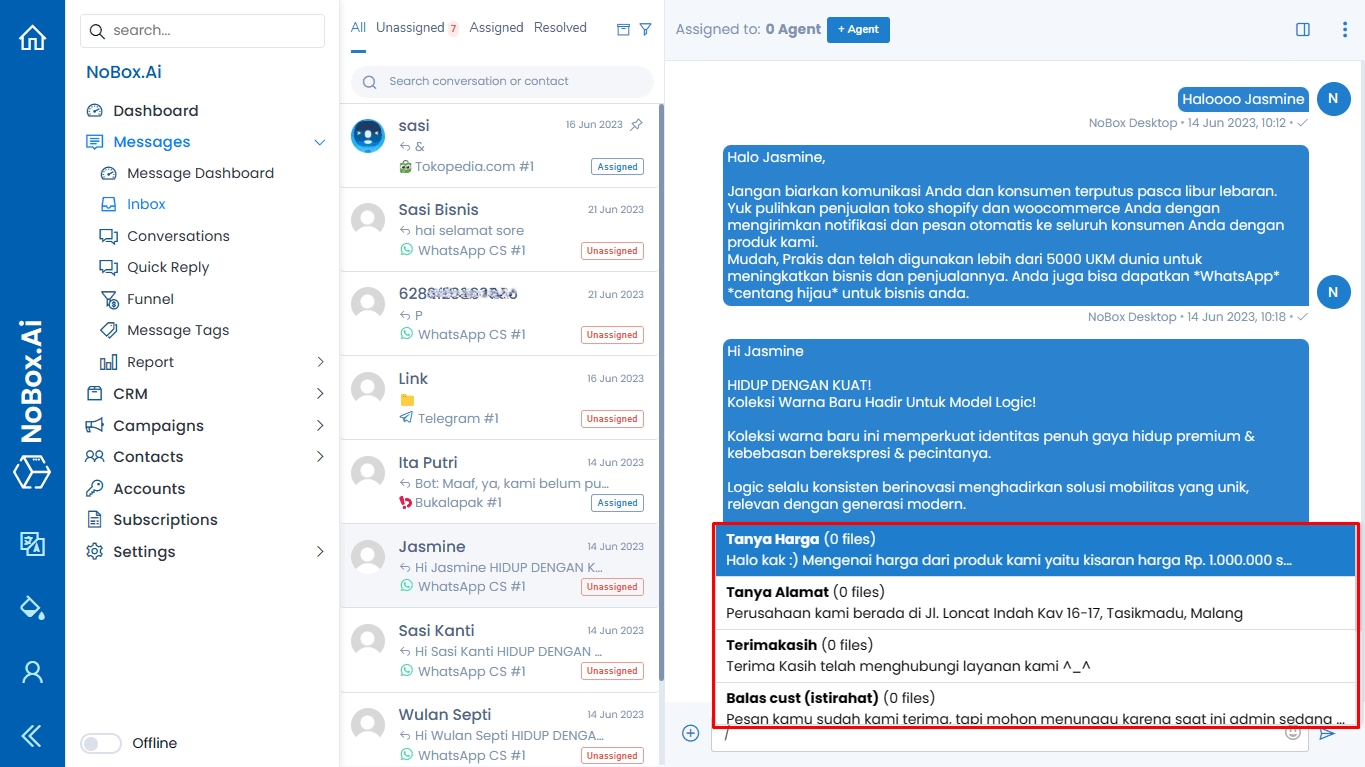
2. In the message input field, press "/" on your keyboard.
.png&w=3840&q=75)
3. A list of available quick replies will appear. Select the quick reply you need.
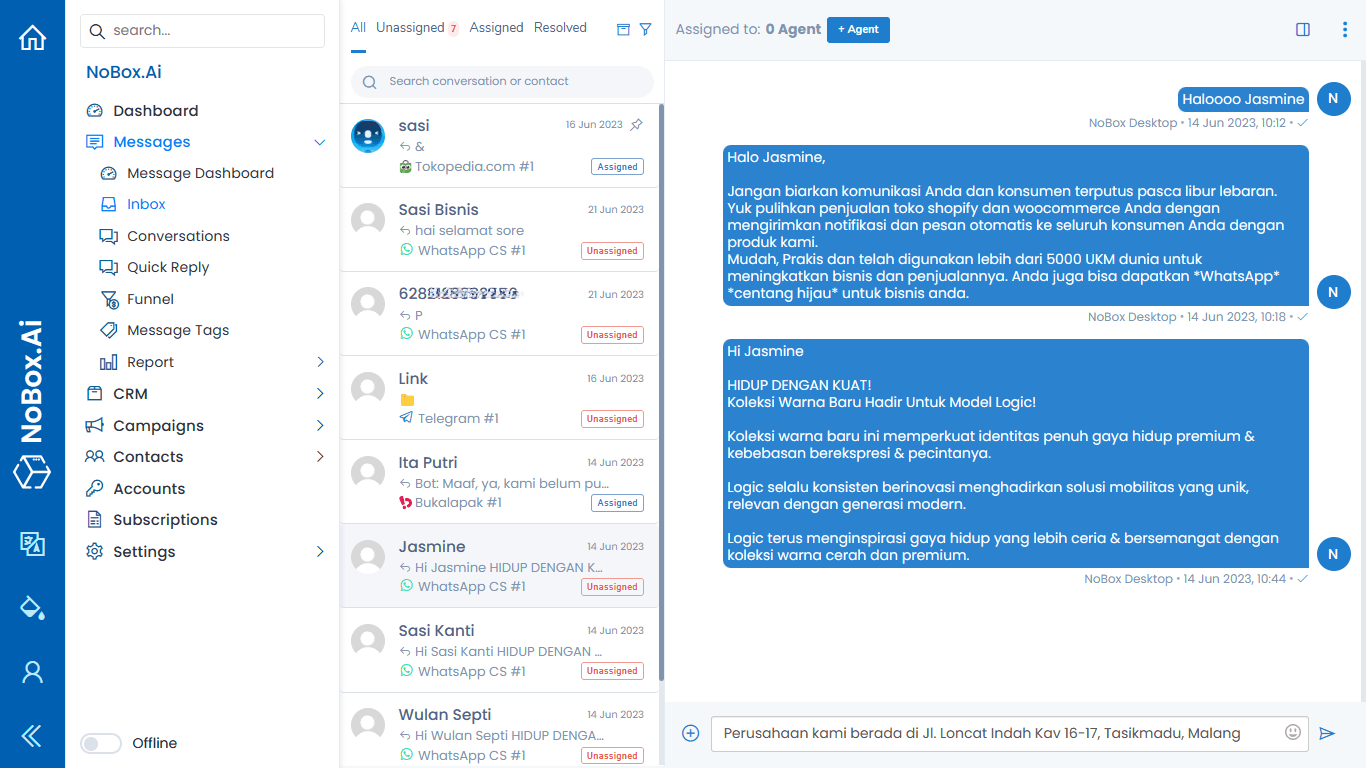
4. The selected quick reply will automatically appear in the message field. You can still edit the message before sending it, then click the [  ] button to send the message.
If you encounter any issues or difficulties related to NoBox.AI,
please contact us via Support Ticket.