
Form Warehouse
Form Warehouse is one of the menus in NoBox used to manage warehouse data or storage locations within the system. This feature plays an important role in inventory management, shipping processes, and the distribution of goods to customers.
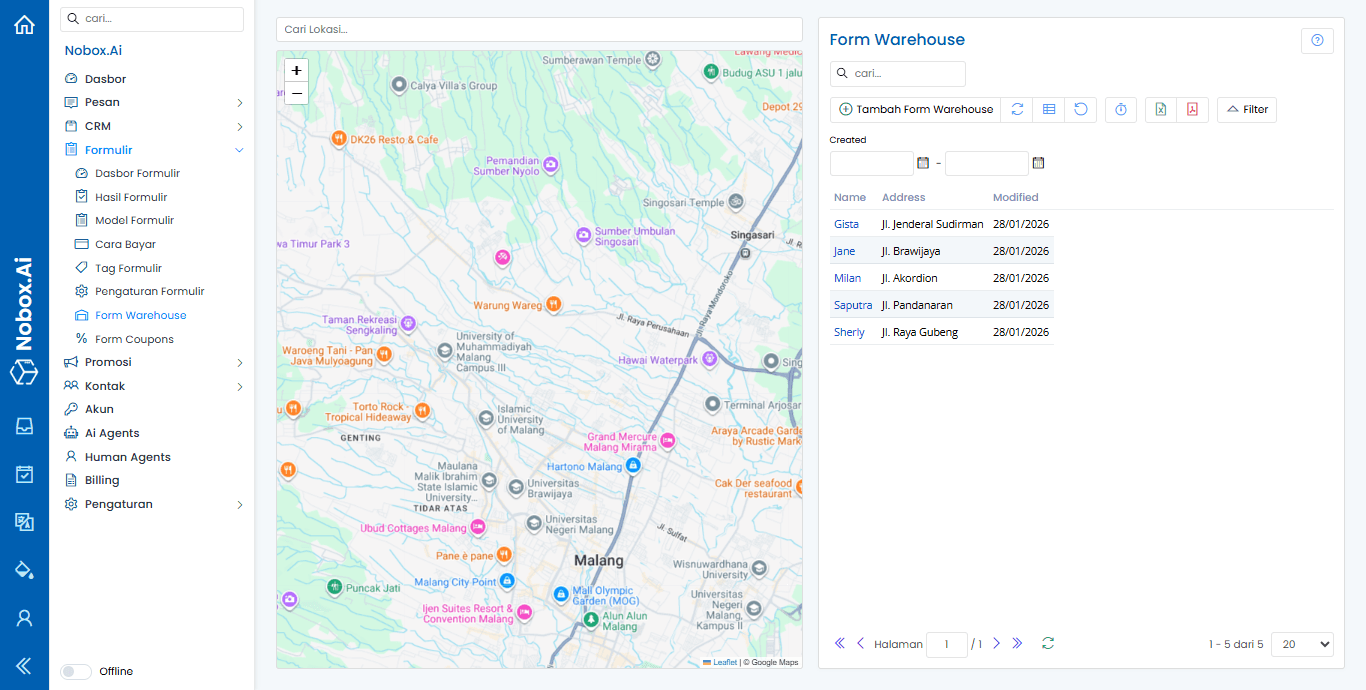
Add Warehouse Form
To create a new warehouse form model, please click the menu [Form Warehouse] ➔ [Add Form Warehouse]. After that, the [Add Form Warehouse] dialog will appear.
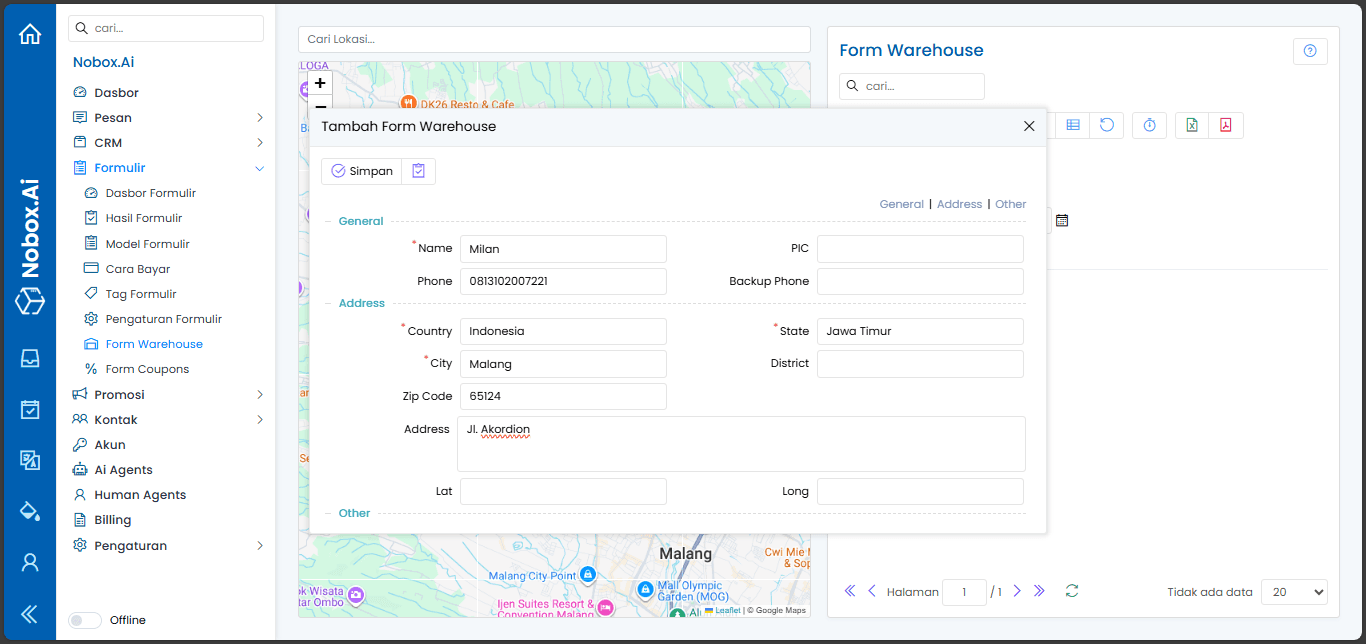
Complete the required fields according to the warehouse information to be registered, for example as follows:
| Field | Description | Example |
|---|---|---|
| Name | The name of the warehouse used as the primary identifier within the system. This name will appear in the warehouse list, transactions, reports, and other connected modules. It is recommended to use a unique, consistent, and easily recognizable name based on the warehouse location or function. | Milan |
| Phone | The warehouse contact phone or mobile number that can be reached by internal teams, couriers, and operational staff. This information is used for logistics coordination, delivery confirmation, and issue handling in the field. Ensure the number entered is active and valid. | 0813102007221 |
| Country | The country where the warehouse is located. This field is used for global location classification and supports system requirements related to international shipping and regional configuration. | Indonesia |
| State | The province or state where the warehouse operates. This information helps the system with distribution area grouping, regional analysis, and administrative-based reporting. | East Java |
| City | The city or district where the warehouse is located. This data plays an important role in delivery route determination, delivery time estimation, and region-based logistics management. | Malang City |
| Zip Code | The postal or ZIP code corresponding to the warehouse address. It is used for address validation, speeding up courier sorting processes, and reducing the risk of delivery errors. | 65124 |
| Address | The complete warehouse address, including street name, building number, and additional details if necessary. This address serves as the primary reference for shipping and on-site operational activities. | Jl. Akordion |
If you have completed the existing fields, click [Save] to store the newly created warehouse form model.
Saving Warehouse Data
After all fields are filled in correctly, click the [Save] button to store the warehouse data. If there are required fields that have not been filled in or the data format is incorrect, the system will display an error message so you can make corrections immediately.
Edit Warehouse Form
To edit existing warehouse data:
1. Select the warehouse data you want to edit from the list.
2. Click the [Edit] button.
3. Make changes to the required fields.
4. Click [Save] to save the changes.
The changes you make will be applied immediately to the warehouse data.
Delete Warehouse Form
To delete warehouse data:
1. Select the warehouse data you want to delete.
2. Click the [Delete] button.
3. A delete confirmation dialog will appear.
4. Click [Yes] to proceed or [No] to cancel.
Deleted warehouse data cannot be restored.
Tips for Using Form Warehouse
-
Use warehouse names that are easy to recognize and match their actual locations.
-
Make sure address and postal code data are filled in correctly to support the shipping process.
-
Include an active phone number so the operations team or couriers can contact the warehouse.
-
Update warehouse data if there are changes to the address or contact information.
-
Delete warehouse data that is no longer in use to keep the data clean and relevant.
By using Form Warehouse optimally, you can manage warehouse data in a more structured and accurate way, supporting smooth logistics processes in the NoBox system.