
Form Payments
Payment Method is a menu option in NoBox used for managing master data of payment methods.
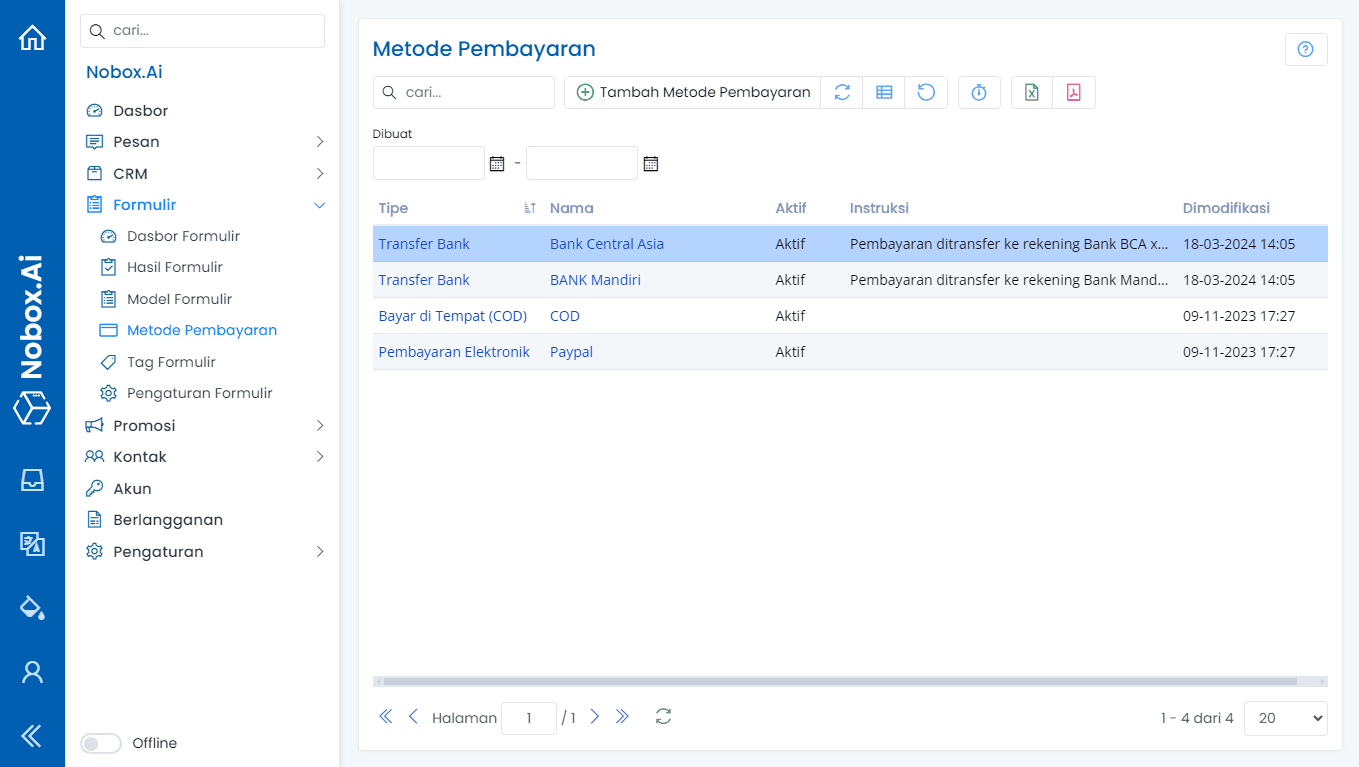
Add Payment Method
To create a payment method record, please click on the [Payment Methods] ➔ [Add Payment Method] menu. A [Add Payment Method] dialog will appear, then fill out the fields in the dialog.
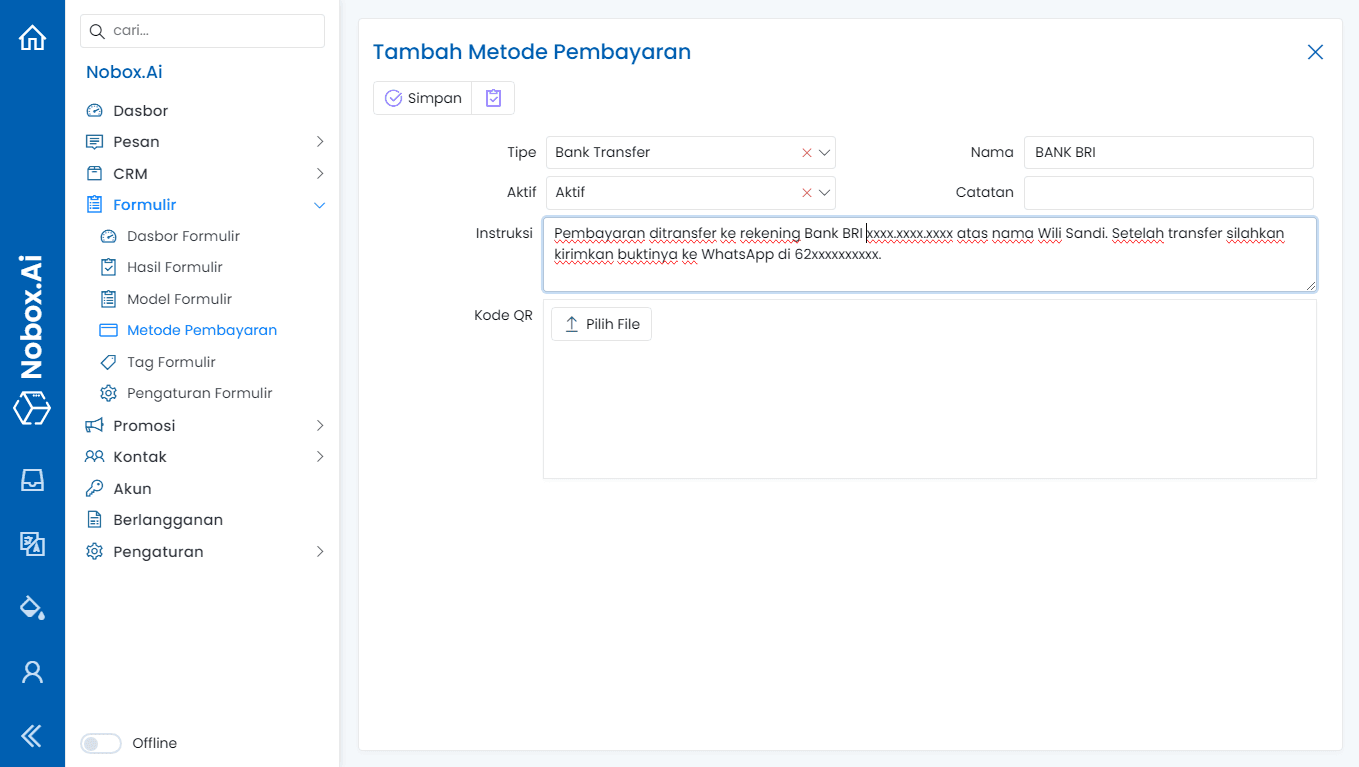
| Field | Description | Example |
|---|---|---|
| Type | Payment method | Bank Transfer |
| Name | Payment name | Bank Mandiri |
| Active | Select payment method status | Active |
| Notes | Additional information | - |
| Instructions | Payment instructions | Transfer payment to Bank Mandiri account xxxx.xxxx.xxxx under the name Jasmine Aulya. After transferring, please send the proof to WhatsApp at 62xxxxxxxxxx. |
| QR Code | Upload QR Code | - |
If you have filled in all the required fields, click [Save] to save the new payment data you’ve created.
Edit and Delete Payment Method Data
To edit a payment method, first select the data you wish to edit. Make your changes and click [Save] to save the changes.
To delete a payment method, select the product data you want to delete, then click [Delete] to display a confirmation dialog. Click [Yes] to confirm deletion or [No] to cancel.
How to Use the Payment Method
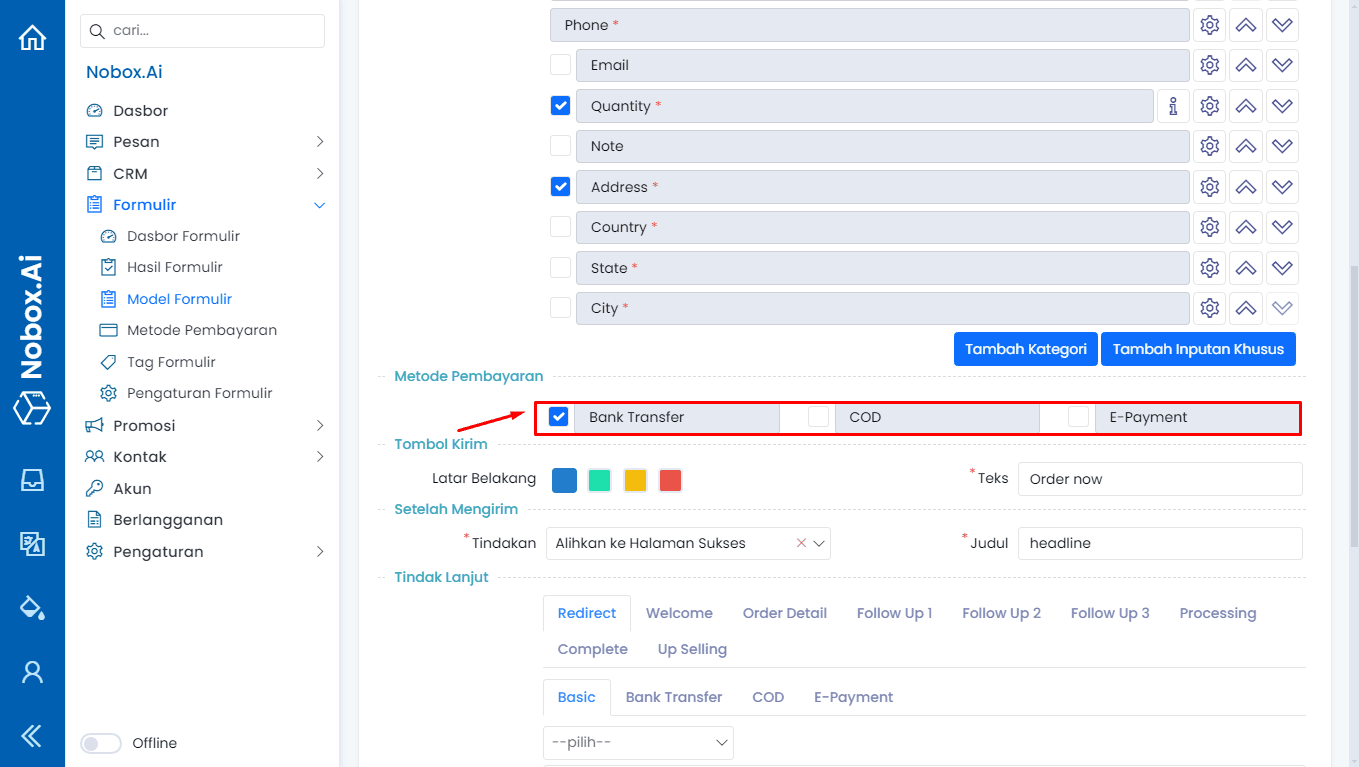
To use a payment method, select one from the form model. Choose the required payment method and click [Save].
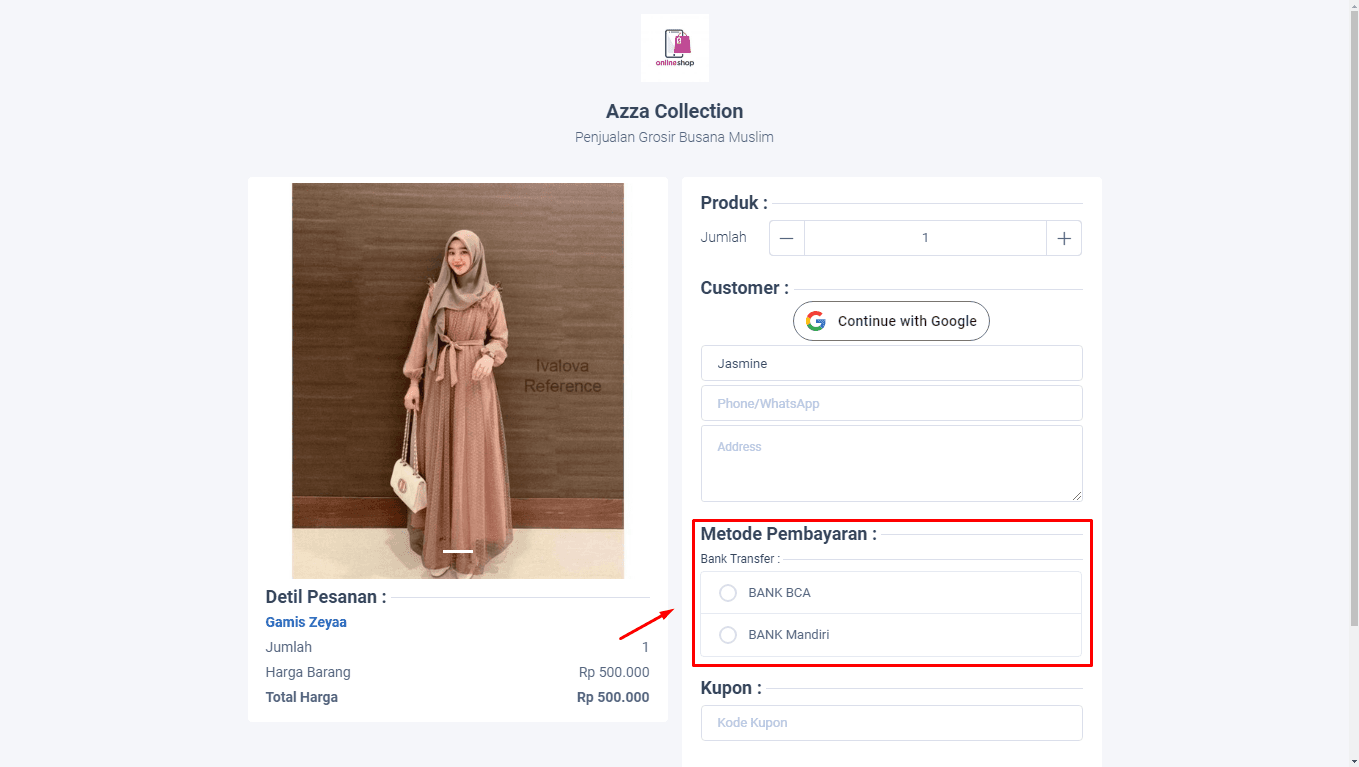
The data form will display the payment method you choose.
If you have any issues or difficulties related to Nobox.Ai, please contact us through Support Ticket