
Settings
Tool Contact
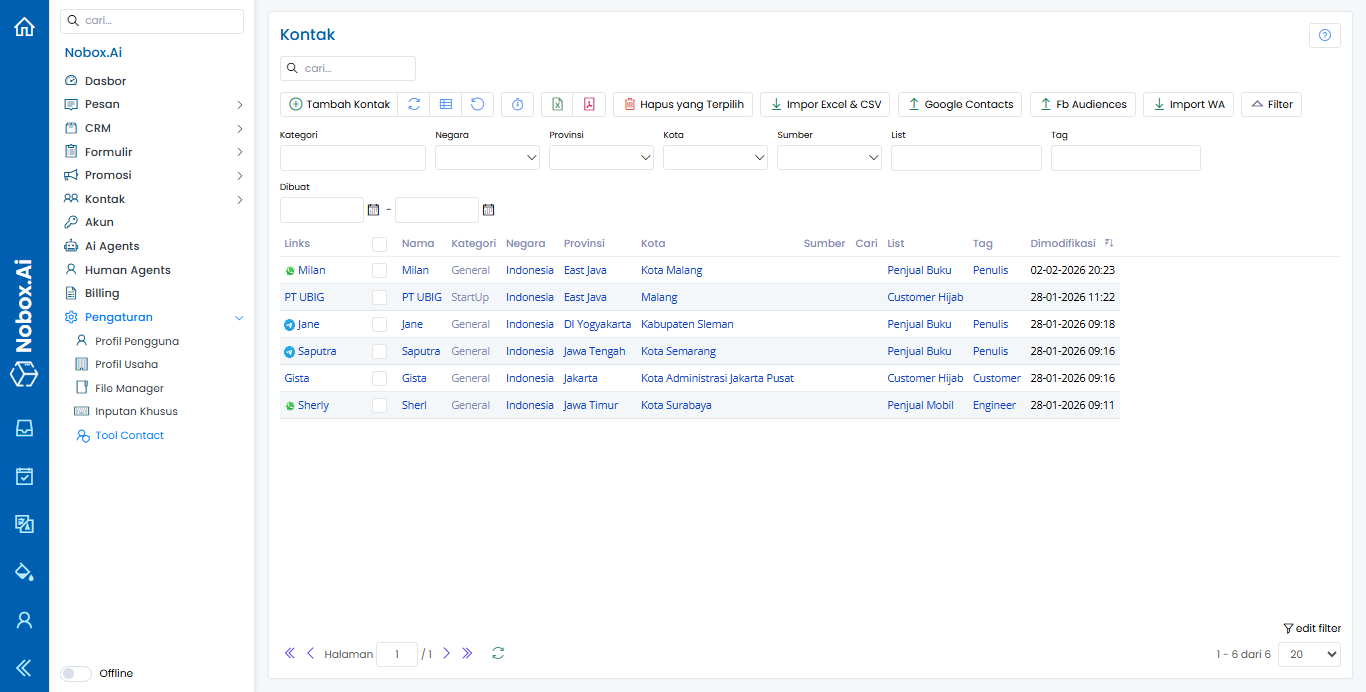
Tool Contact is used to manage customer contact data in Nobox.Ai. Through this menu, you can add, import, filter, and centrally manage contacts for CRM, messaging, and promotional needs.
Add Contact
Use this feature to manually add a new contact.
Steps:
1. Click [Add Contact]
2. Complete the contact information
3. Click [Save]
.png)
Contact Fields
| Section | Field | Description |
|---|---|---|
| General | Name | Full name of the contact and used as the main identity (required) |
| Category | Contact classification to help group data | |
| List | Contact list used for segmentation and campaign needs | |
| Tag | Special labels to make contact identification and filtering easier | |
| Contact Person | Main person in charge or representative of the contact | |
| Notes | Additional information or important notes related to the contact | |
| Link | Channel | External communication platform connected to the contact |
| External Name | Account name or username on the selected platform | |
| External ID | Unique contact identity from the external platform | |
| Address | Address | Complete physical address of the contact |
| Country | Country where the contact is located | |
| Province | Province or administrative region of the contact | |
| City | City or district where the contact is located | |
| Postal Code | Postal code as a location reference | |
| Latitude / Longitude | Geographic coordinates for map location determination | |
| Location | Area name or location marker | |
| Blocked | Status to indicate whether the contact is blocked or active |
Import Contacts
Add contacts in bulk through the following integrations:
| Method | Description |
|---|---|
| Excel & CSV | Upload contact files |
| Google Contacts | Synchronize Google contacts |
| Facebook Audiences | Import Facebook audience data |
| Import WhatsApp | Import contacts from WhatsApp |
Filter & Search
Make it easier to search contacts based on:
-
Category, Country, Province, City
-
Source, List, Tag
-
Created date
Click [Filter] to apply search criteria.
Delete Kontak
-
Select one or more contacts
-
Click [Delete Selected]
-
Confirm the action
Notes
- Make sure required fields are filled in before saving
- Contact data can be used for CRM, Messaging, and Promotions
If you have any issues or difficulties related to Nobox.Ai, please contact us through Support Ticket