
Scrape Website Olx
OLX IndonesiaX is a desktop application with Chrome browser support that enables business prospect data (your potential customers) from one network site with the best speed and quality results from various countries. This software extracts various available data from OLX, including links, business names, addresses, phone numbers, websites, ratings, total views, opening hours, image links, latitude, longitude, plus codes, and business fields. Data is automatically saved in NoBox.Ai. You can also export the data in Excel (.xlsx, .csv) and JSON (.json) file formats.
Add Account
Make sure you have subscribed to OLX Extractor for the country you want to extract data from. To add a new tool, please open the NoBox Desktop ➔ [Add Account], and a [Add Account] dialog will appear.
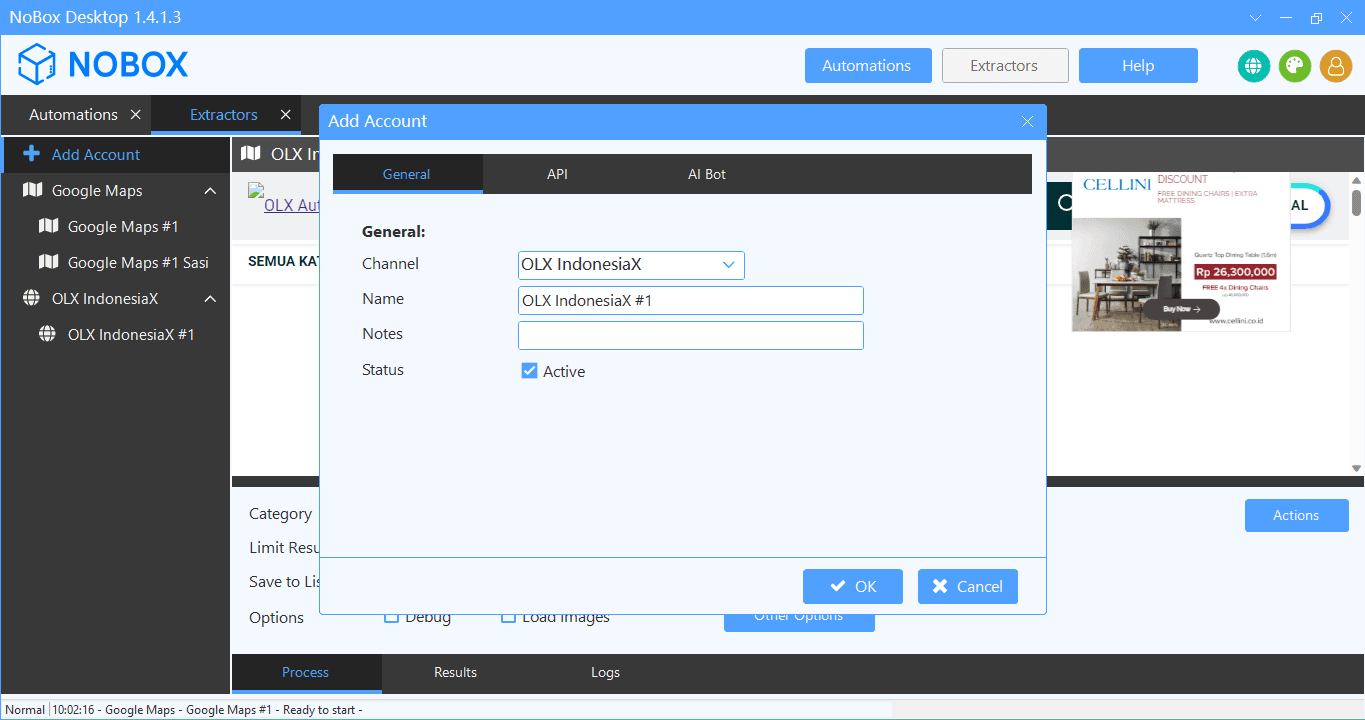
| Entry | Description | Data Example |
|---|---|---|
| Channel | Channel you choose | OLX IndonesiaX |
| Name | Your Account Name | OLX IndonesiaX #1 |
| Notes | Provide notes about that account. | - |
| Status | Information about whether the account is active or not. | Active |
If you have completed filling out the form, click [OK] to save the account you just created.
Edit and Delete Account
To edit an account, please open and log in to the website id.nobox.ai, and click the [Accounts] menu. First, select the account you wish to edit, then update your information and click [Save] to save the changes.
To delete an account, select the account you wish to remove, then click [Delete]. A confirmation message will appear asking if you want to delete the account. Click [Yes] to proceed or [No] to cancel.
Configuration
OLX supports an auto-login feature, allowing you to log in automatically without entering your password each time. Click [Other Options] to bring up the [Option] dialog, then enter your OLX username and password.
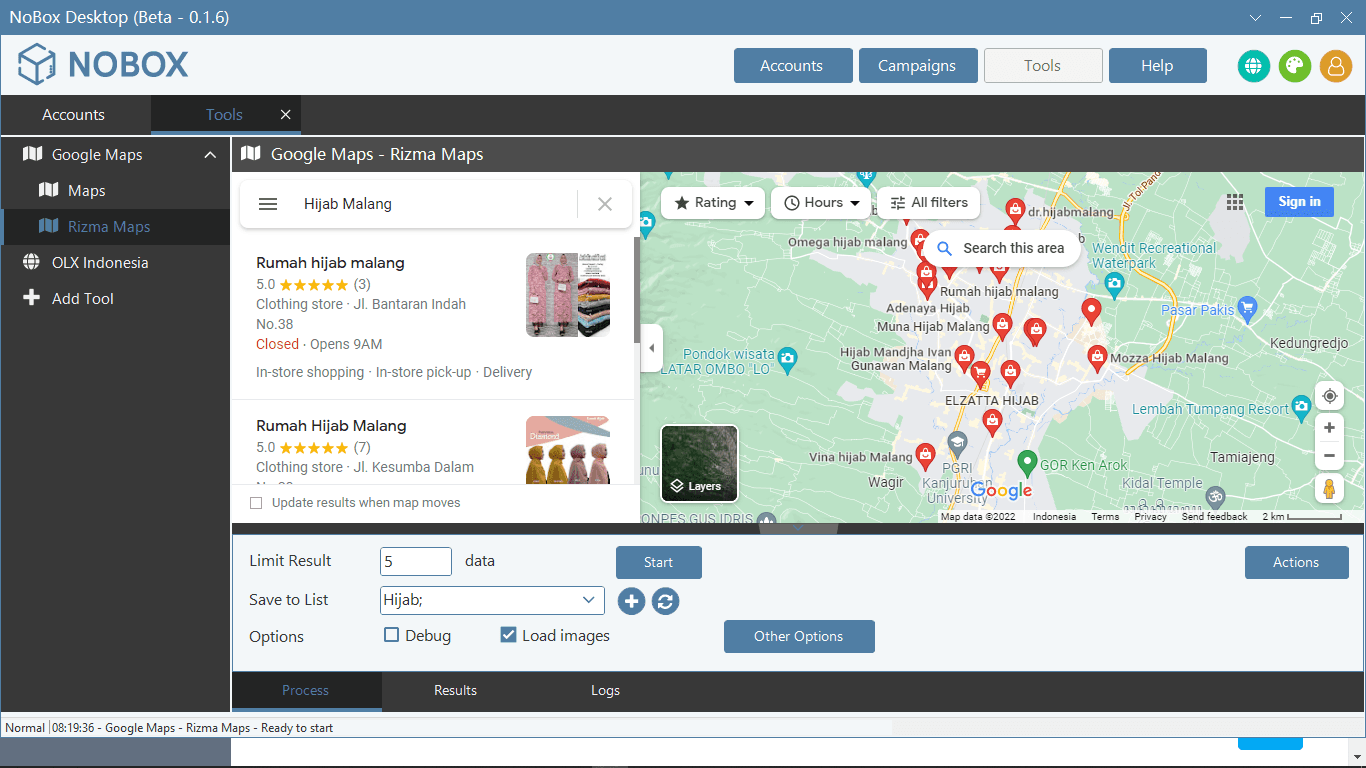
After completing the form, click [OK] to save the new autologin Username and Password you just created.
Basic Operations
After configuring auto login, you can proceed with basic operations and main functions.
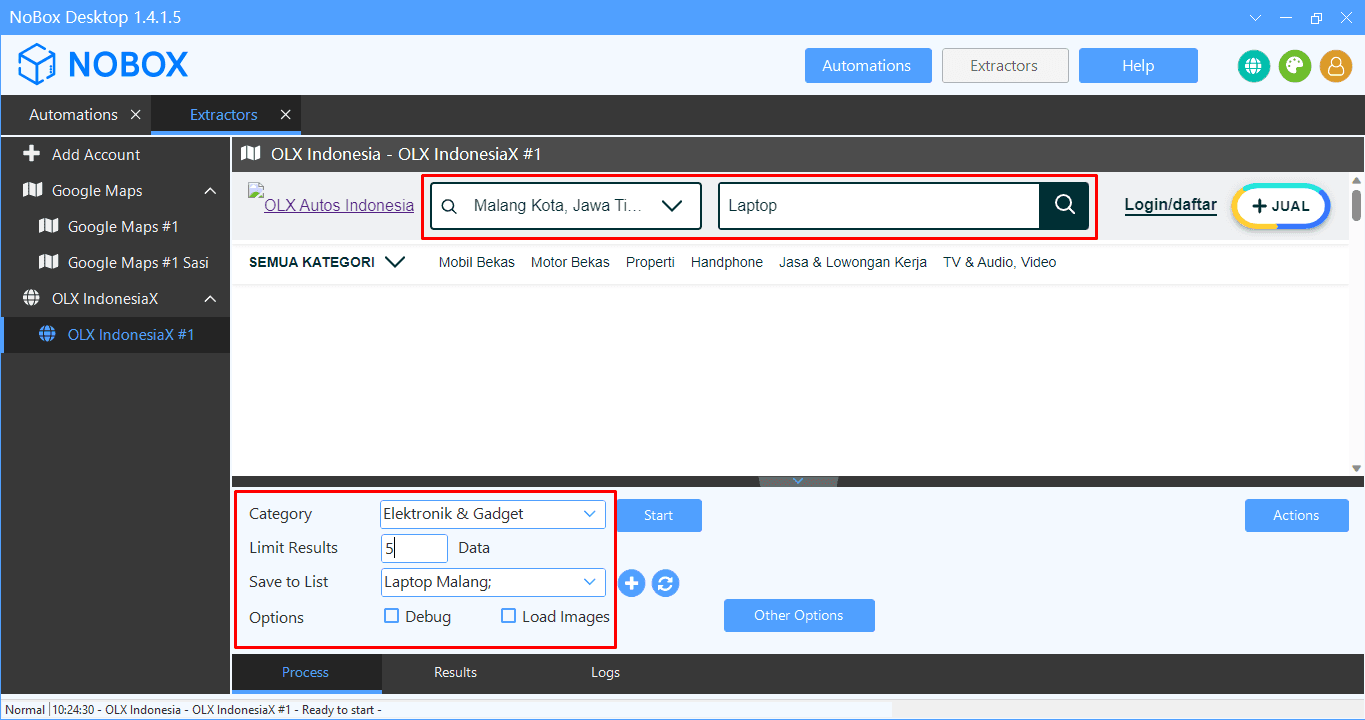
- Open the NoBox Desktop application
- Select the location from which the data will be retrieved.
- Enter the data query you want to retrieve.
- Enter the category of data to be collected.
- Enter [Limit Result]
- Select a list to save the extracted data under [Save to List], or add a new list.
- Choose [Options] to display debug mode or images of the item.
| Entry | Description | Data Example |
|---|---|---|
| Category | Select category of goods/services | Electronics & Gadgets |
| Limit Result | Input: Enter the amount of data to be retrieved | 5 |
| Save to list | Choose/add a list to store extracted data. | Laptop Malang |
| Options | Check if you want to debug and load images | - |
Scrape Data
Scraping data from the OLX website allows you to extract seller information or ad posters from various product and service listings quickly, easily, and efficiently.
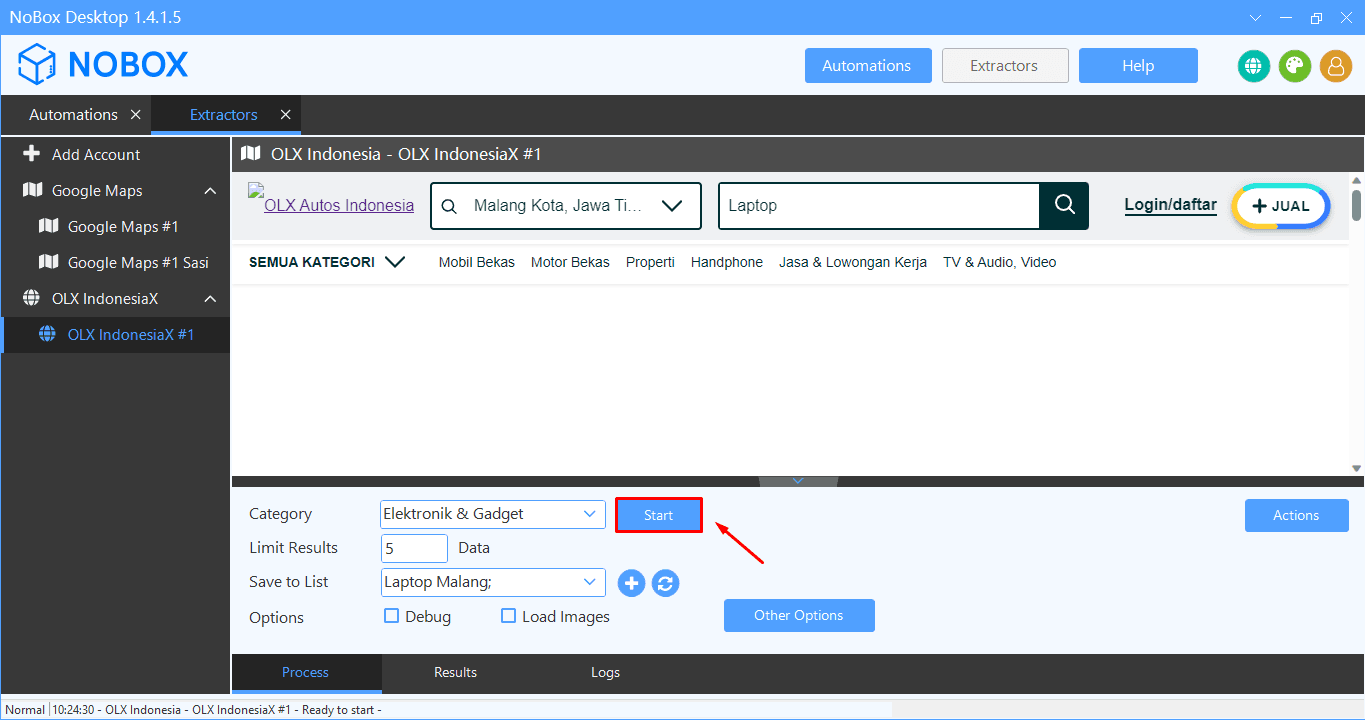
- Once the data processing is complete, click [Start] to begin data extraction.
- Wait for a notification indicating that the data extraction is complete.
- If the amount of data retrieved is less than the amount entered, there are duplicate records removed from the same installer.
- Data that has been automatically retrieved will be saved in the [Contacts] menu of NoBox.Ai
If you encounter any issues or difficulties with NoBox Desktop, please contact us via Support Ticket
\