
Google Maps Extractor
Google Maps Extractor offers several attractive features that you can take advantage of to support all its benefits. Among the many available options, here are a few key features you can utilize:
Set Character Unicode
NoBox can store search results in Unicode format such as Arabic, Chinese, Japanese, etc.\
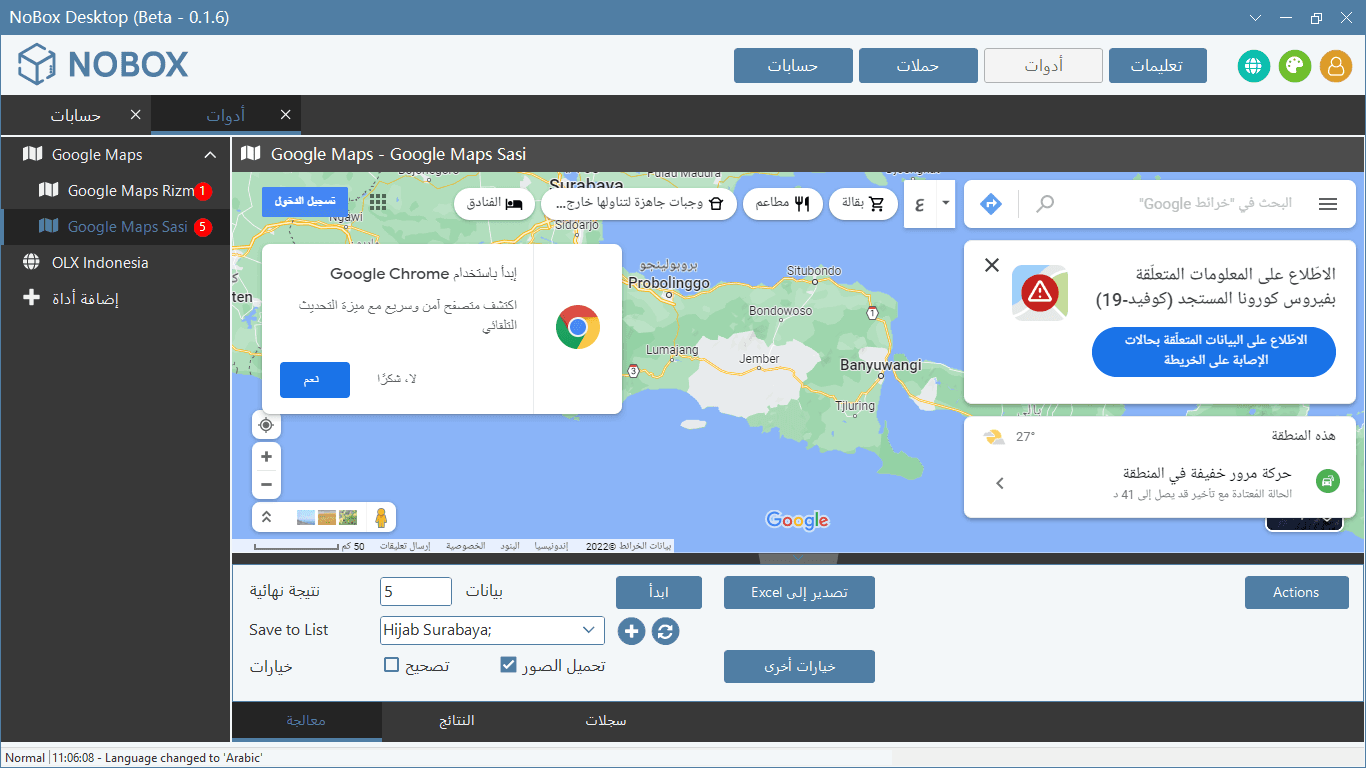
- Change the language settings first.
- Extract data.
- Once completed, the extracted data will be stored according to the selected language.
Interval Get List
Feature to adjust the timing between consecutive requests to simulate human-like browsing behavior.
.png&w=3840&q=75)
Page Process
Page that functions to set the data collection criteria.
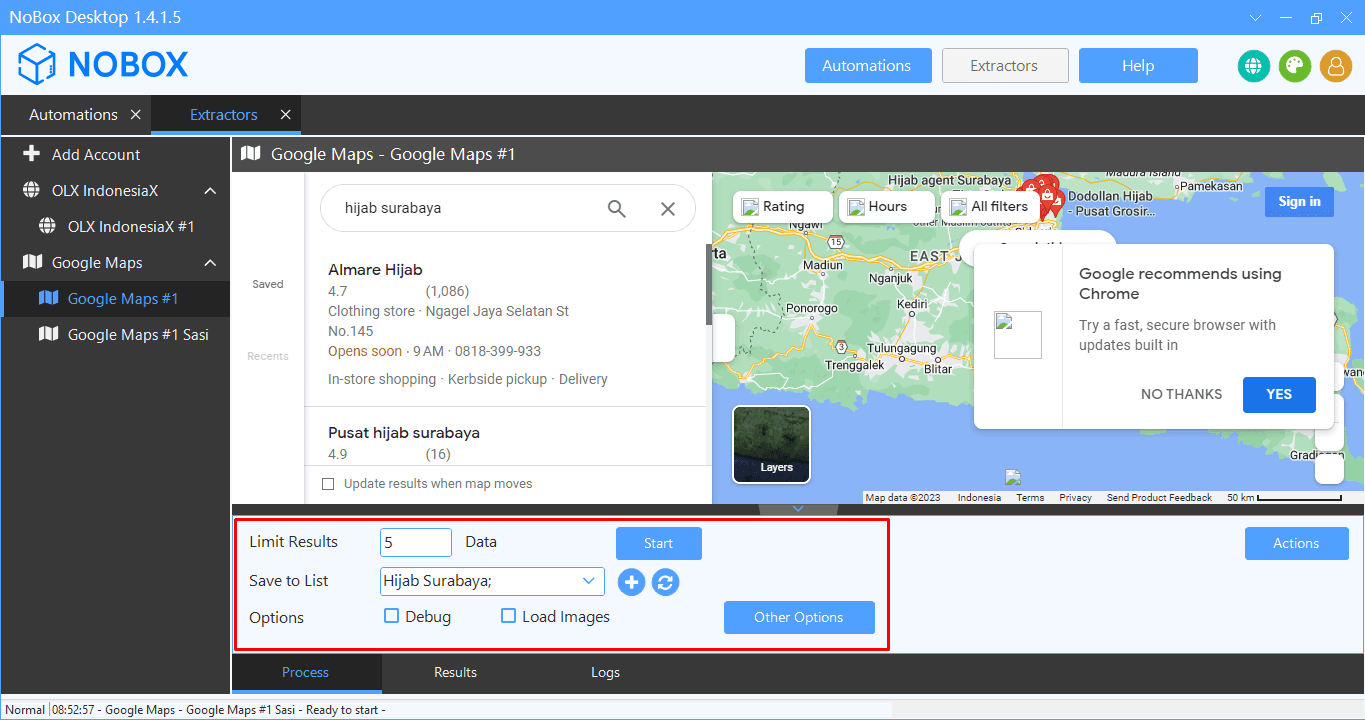
| Features | Function |
|---|---|
| Limit Result | Adding data as per the requirement for the desired amount. |
| Save To List | Save and add a filename, so when you want to add to the list you can use this feature. Simply press the [+] button, give the list a name as desired, and then press [OK]. |
| Option Debug | Show activity logs in great detail. |
| Option Load Images | Display images in the data |
| Other Option | Interval Settings for selecting the country location, and at the bottom, there are Interval settings for data retrieval. |
Page Result
The result is a page displaying the outcomes from the retrieved data.
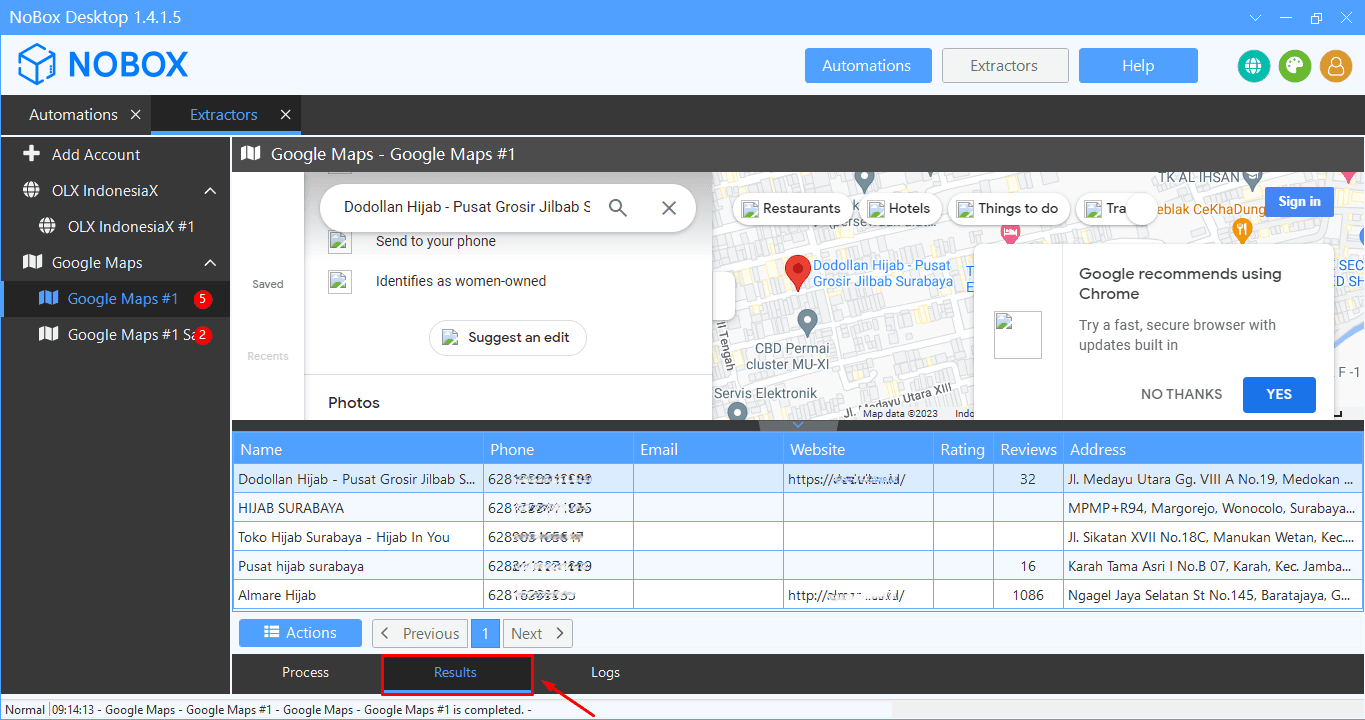
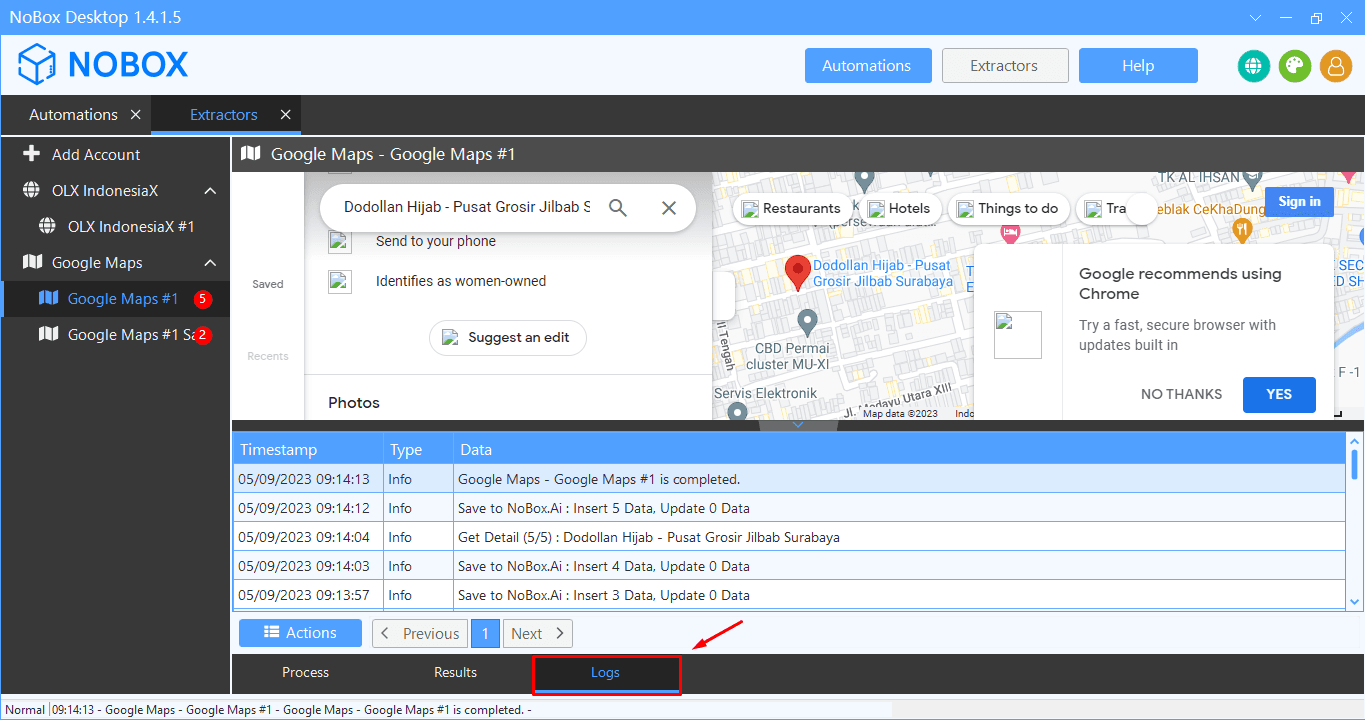
Page Logs
Logs is a page to view all ongoing system activities.
Multi Tab
Used for conducting search processes with multiple keywords simultaneously.
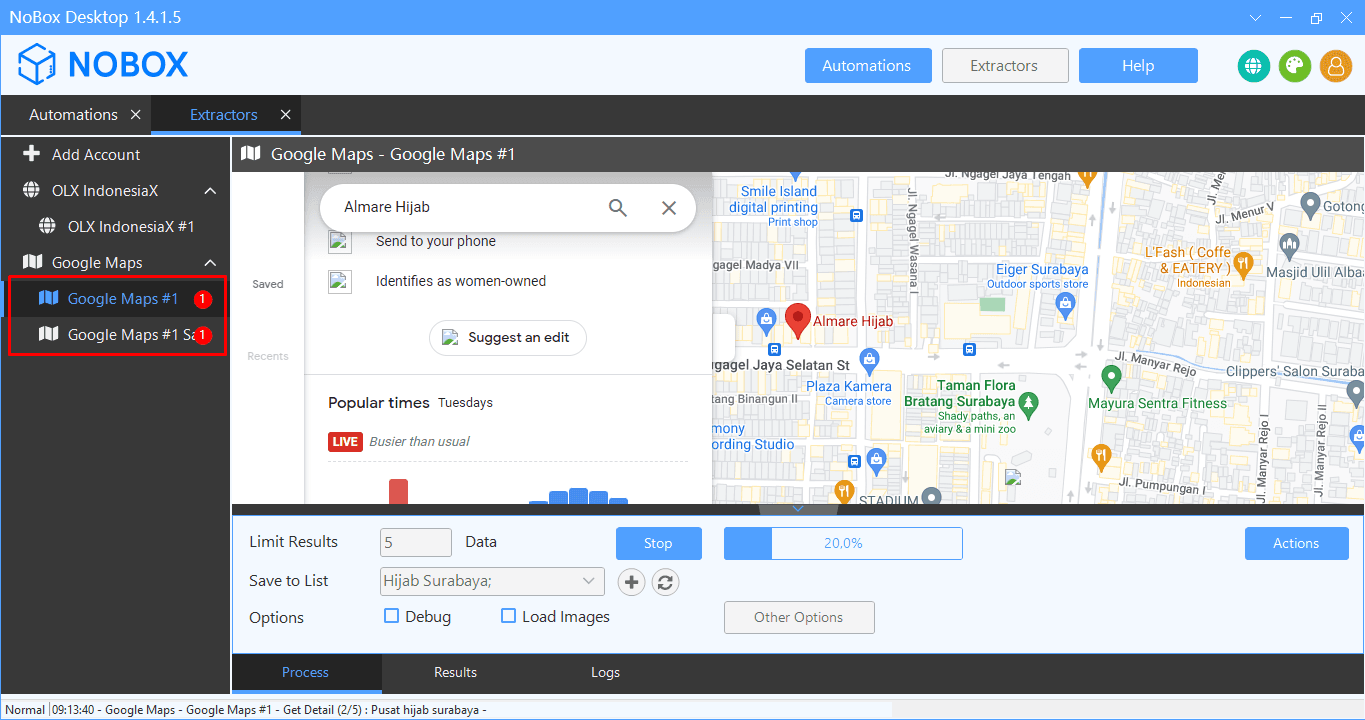
- Perform data extraction on 2 extractor accounts, then add with "Add Account"
- First extractor, perform a free search with a data count of 5, then add a new list.
Website NoBox.Ai
The extracted data will be automatically stored on the NoBox.Ai website, allowing you to access and monitor the results using any browser and device.
.png&w=3840&q=75)
- Go to the [Contacts] section and select the [Contacts] menu.
- Select filter [Source -> Google Maps]
- Enable the [Auto Refresh] feature to monitor which data has been successfully processed.
Export Data
NoBox offers options to store extracted data in Excel (.xlsx, .csv) and JSON (.json) file formats.
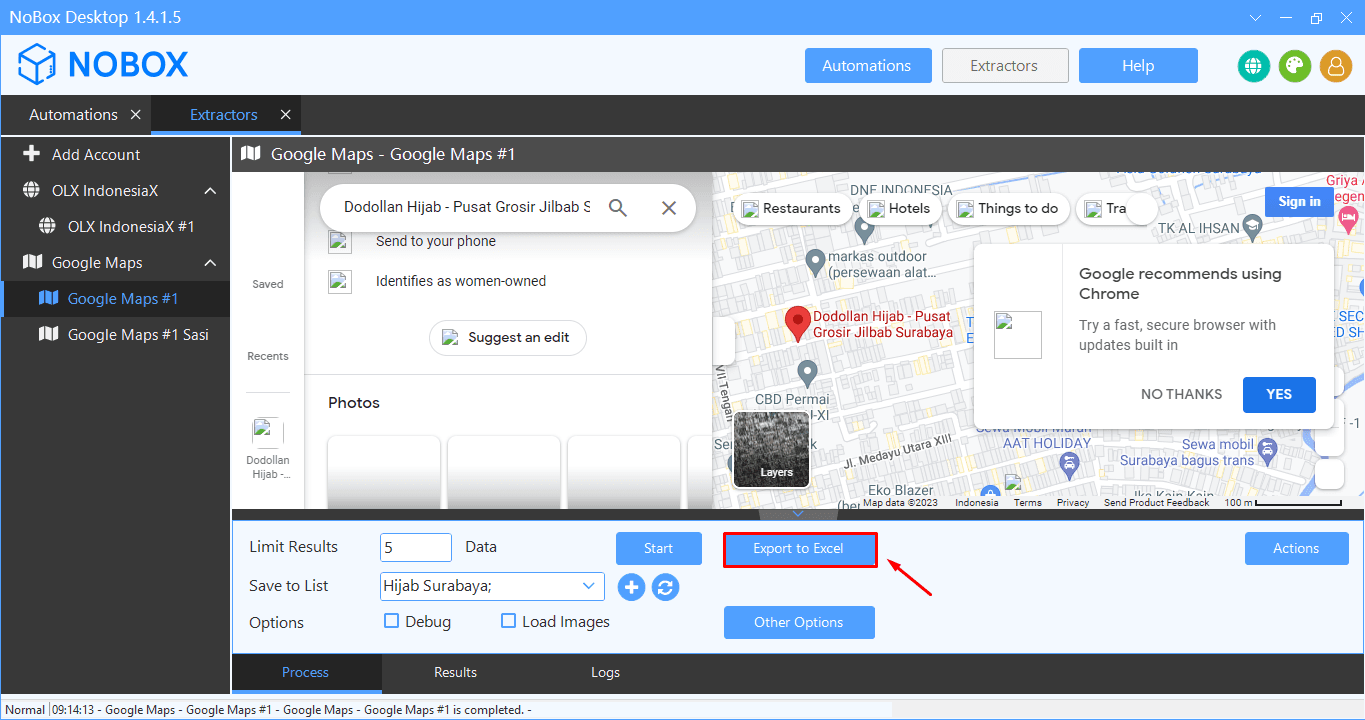
- Click [Export to Excel] on the [Process] page.
- To view the newly retrieved data, go to the [Results] page, then click the [Action] button to export in Excel, CSV, or JSON format.
Handling a Computer Shutdown During Data Extraction
NoBox offers a feature for unexpected computer/software shutdowns during data extraction.
.png&w=3840&q=75)
- Open the NoBox application again and navigate to [Extractor -> Google Maps]. A notification will appear indicating that the previous process is still unfinished.
- Click [OK] to continue the data search process.
- Click [Cancel] to cancel the search.
If you encounter any issues or difficulties with NoBox Desktop, please contact us via Support Ticket