
Contacts
Contact is a feature within Nobox.Ai used to store extracted contact data and manage target promotion data.
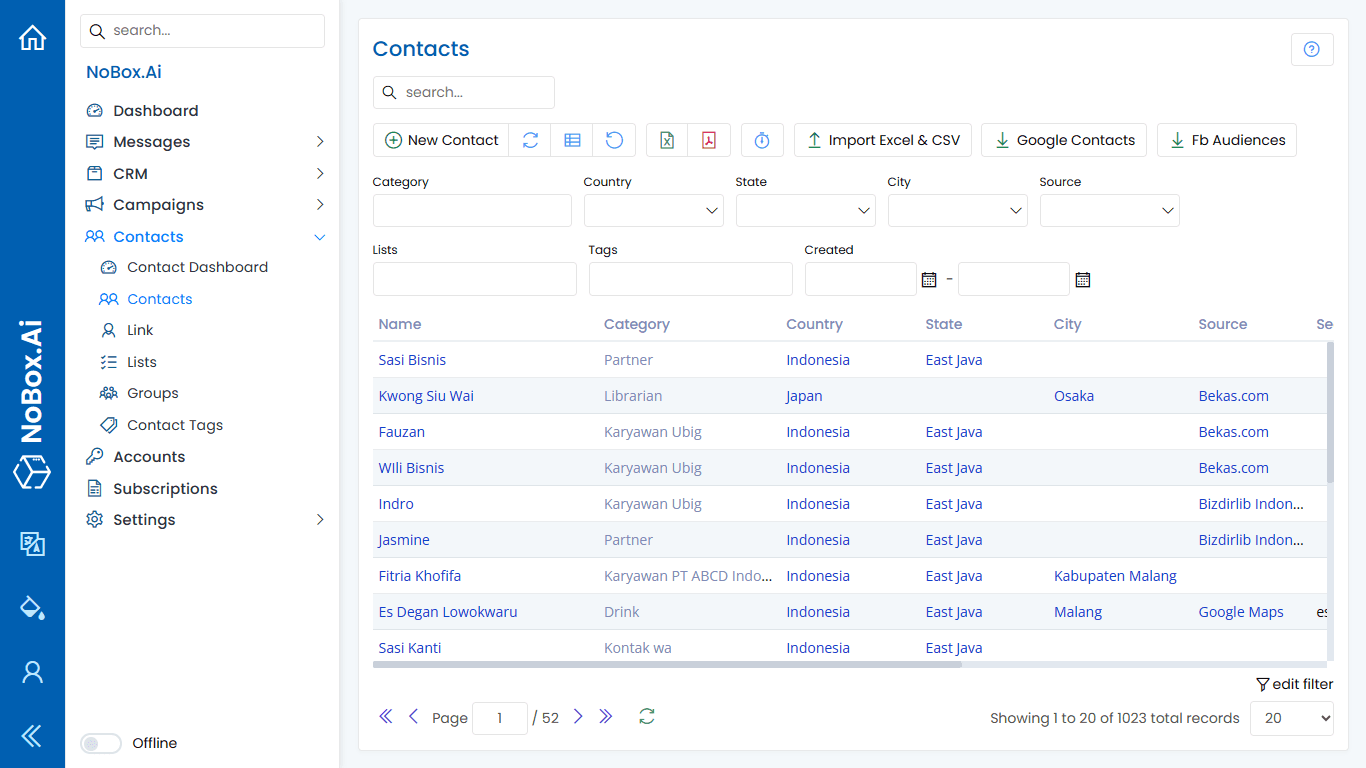
In the display, there are several sections, each with its own function. The explanation of these functions is as follows:
• Import Excel & CSV: Used to import contact data in Excel or CSV format from a file you own into your Nobox.Ai contact data.
How to Impor Excel & CSV
1. Go to the [Contacts] menu ➔ select [Import Excel & CSV] feature..
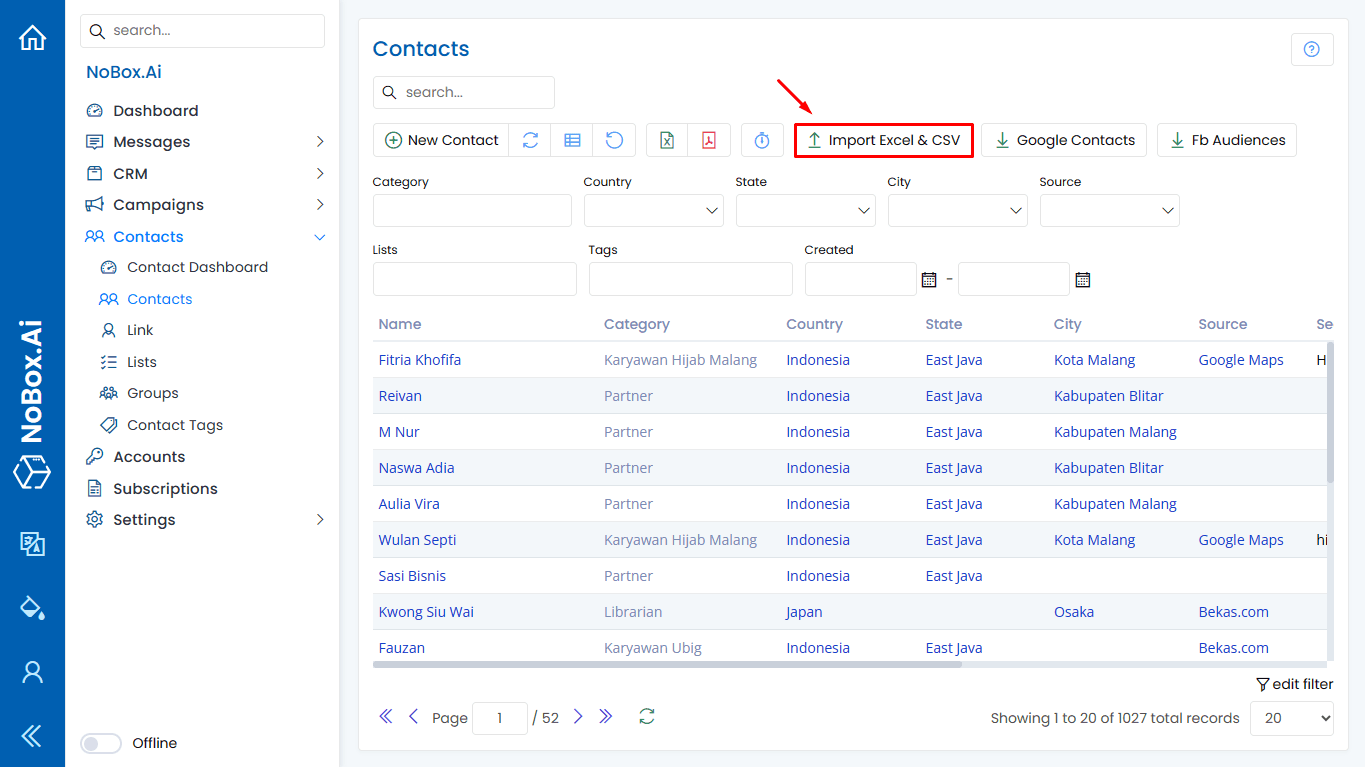
2. First, download the model or upload an existing Excel or CSV file. Click [Select File] ➔ choose your Excel or CSV file, then click [Import].
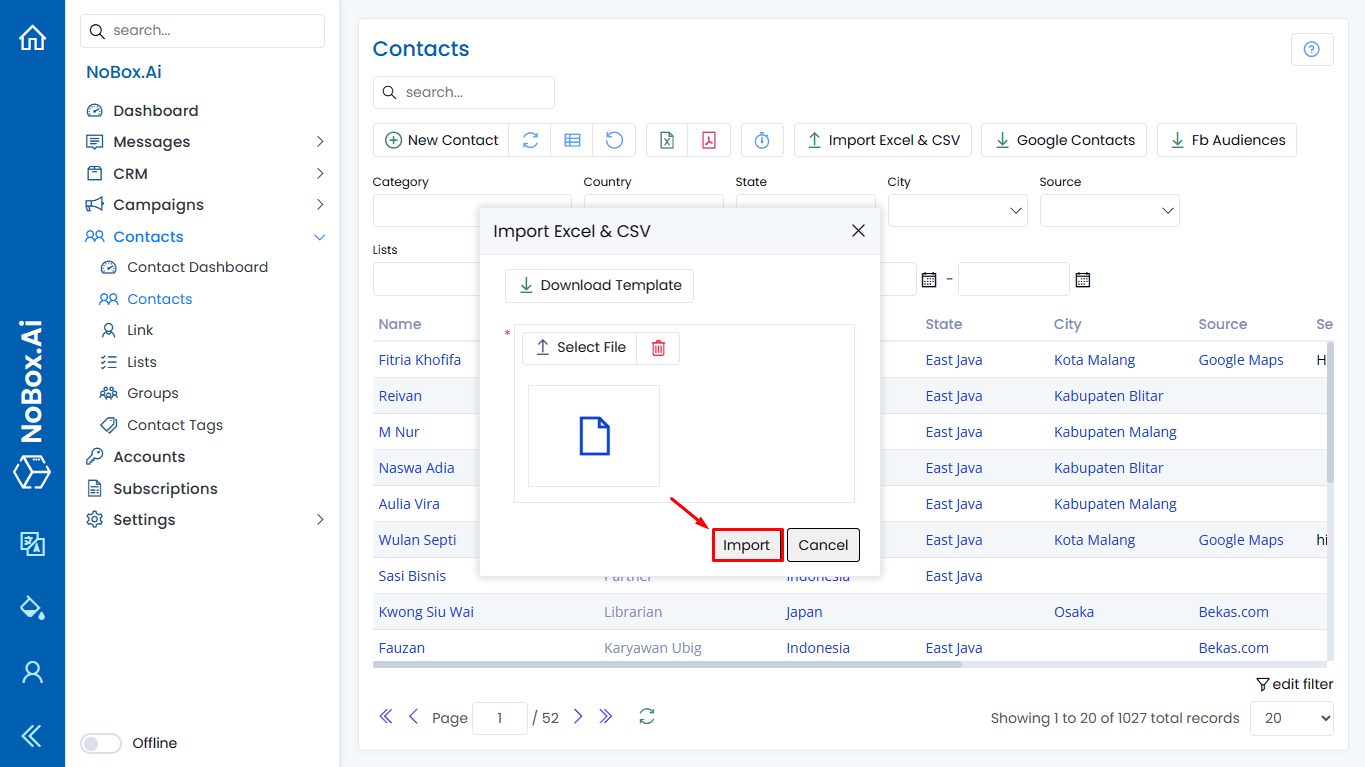
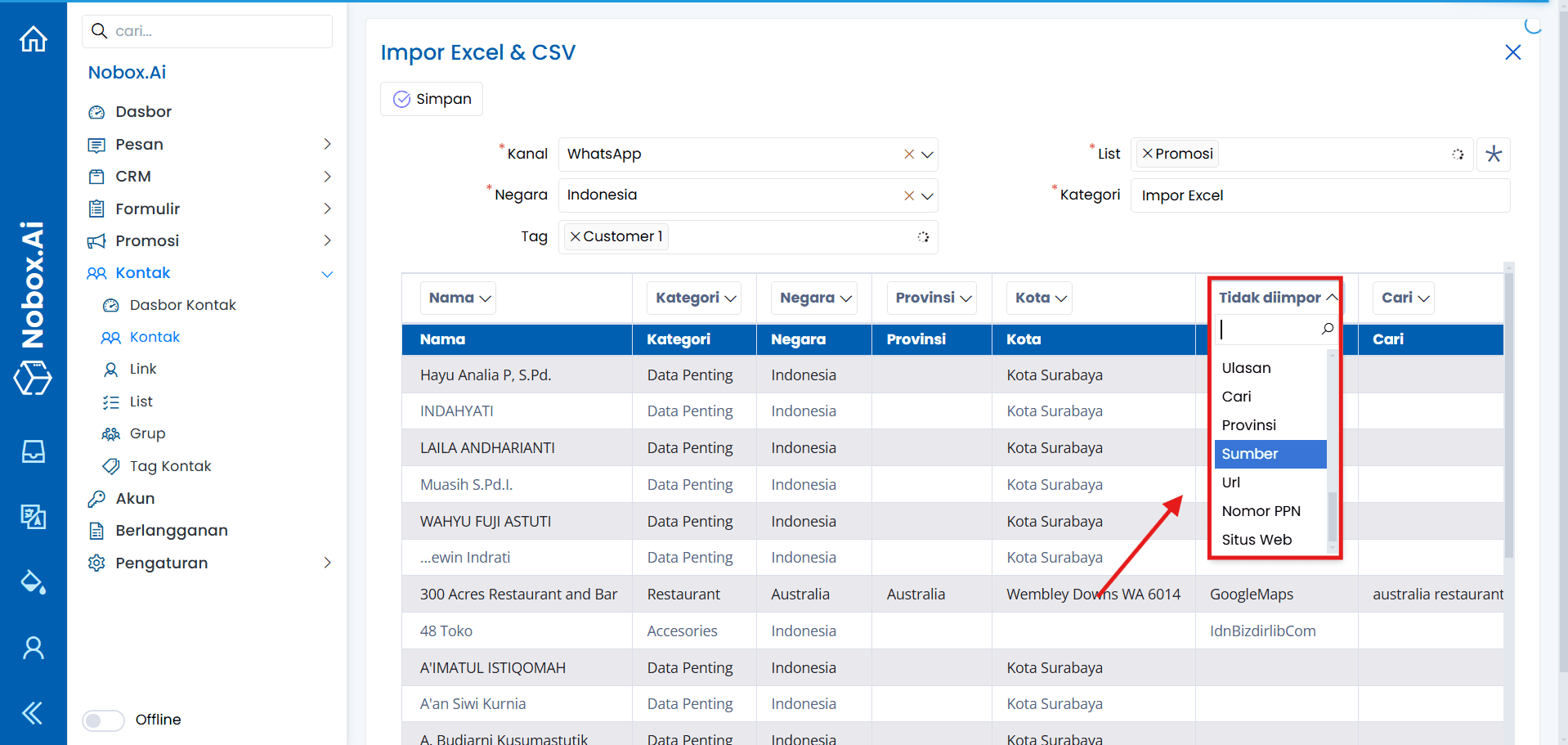
3. A dialog will appear [Import Excel & CSV]. Complete the channel, list, country, category, tag fields.

To map Excel data with fields in Nobox.Ai, select the field names that correspond to the column names in the Excel data.
Ensure to select the [External ID] field for all data such as phone numbers, emails, and others. Then, click the [Save] button to save the data.
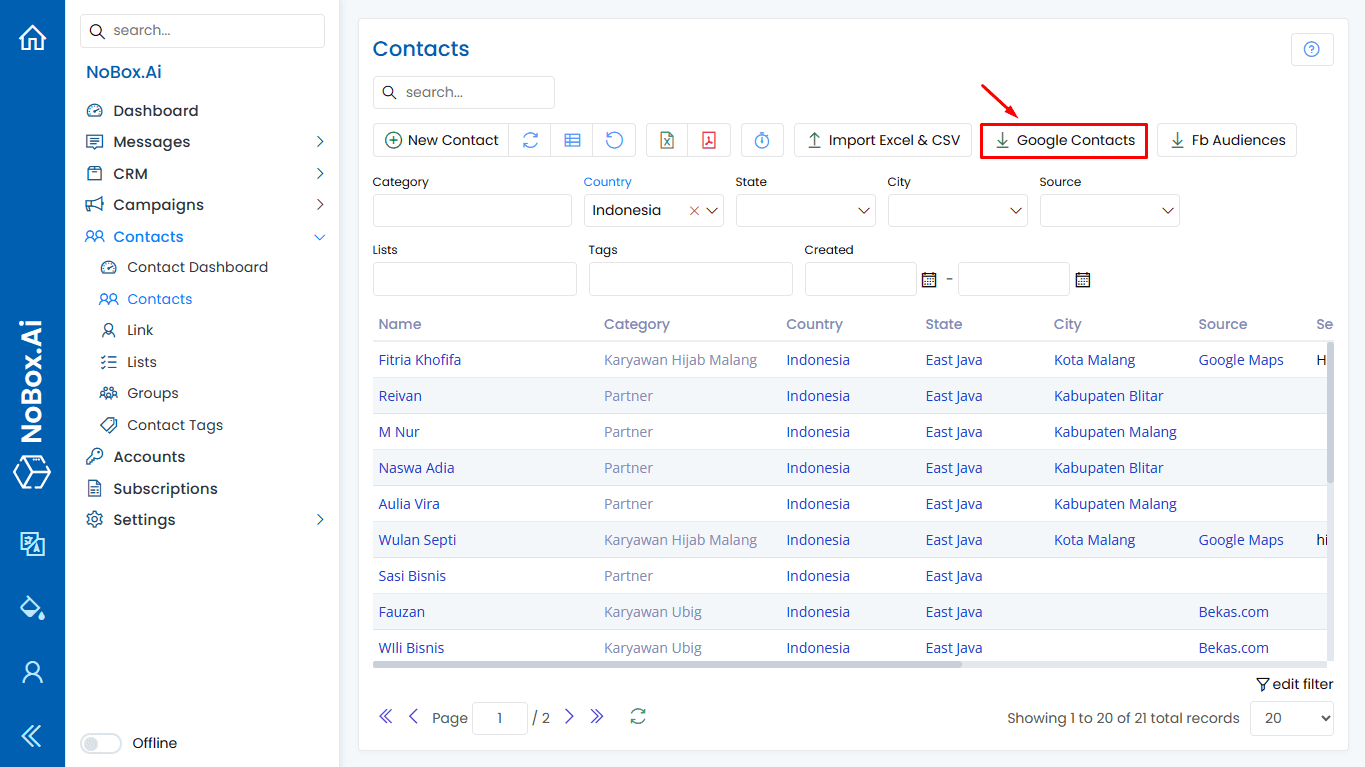
• Google Contacts: It is used to download contact data in CSV format, making it easier for you to import contact data into Google Contacts.
Cara Export Google Kontak
1. Click the [Google Contacts] feature, and it will automatically download your contact data.
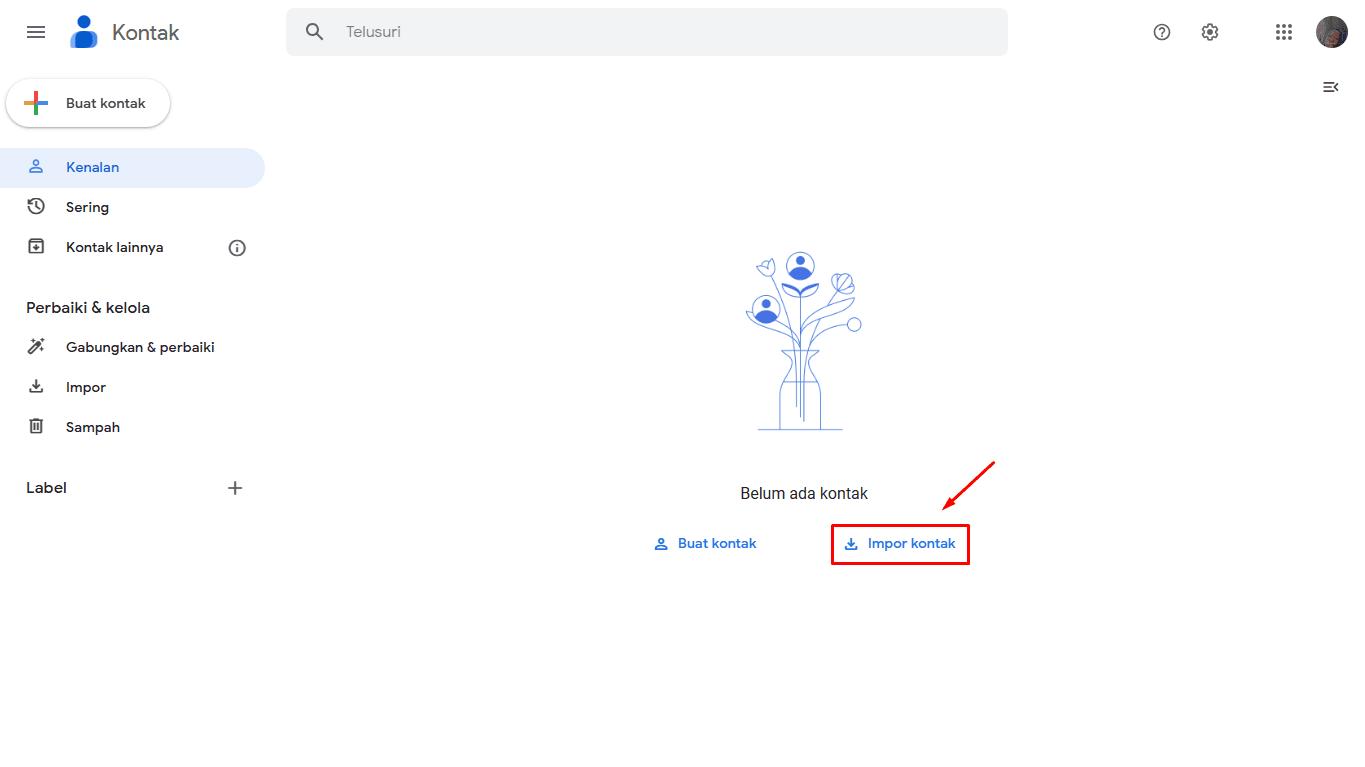
2. Open Google Contacts in your Google account, then click [Import contacts].
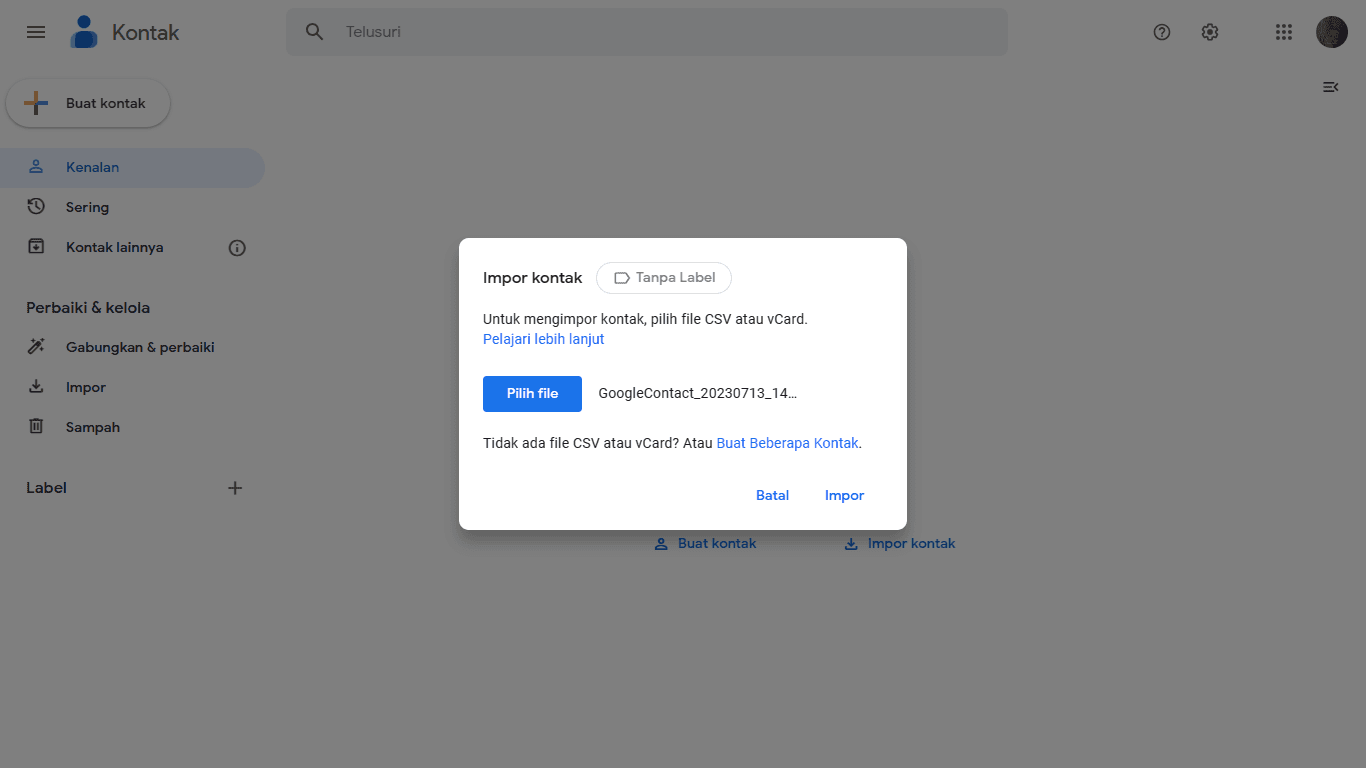
3. Choose the file downloaded from Nobox.Ai, then click [Import].
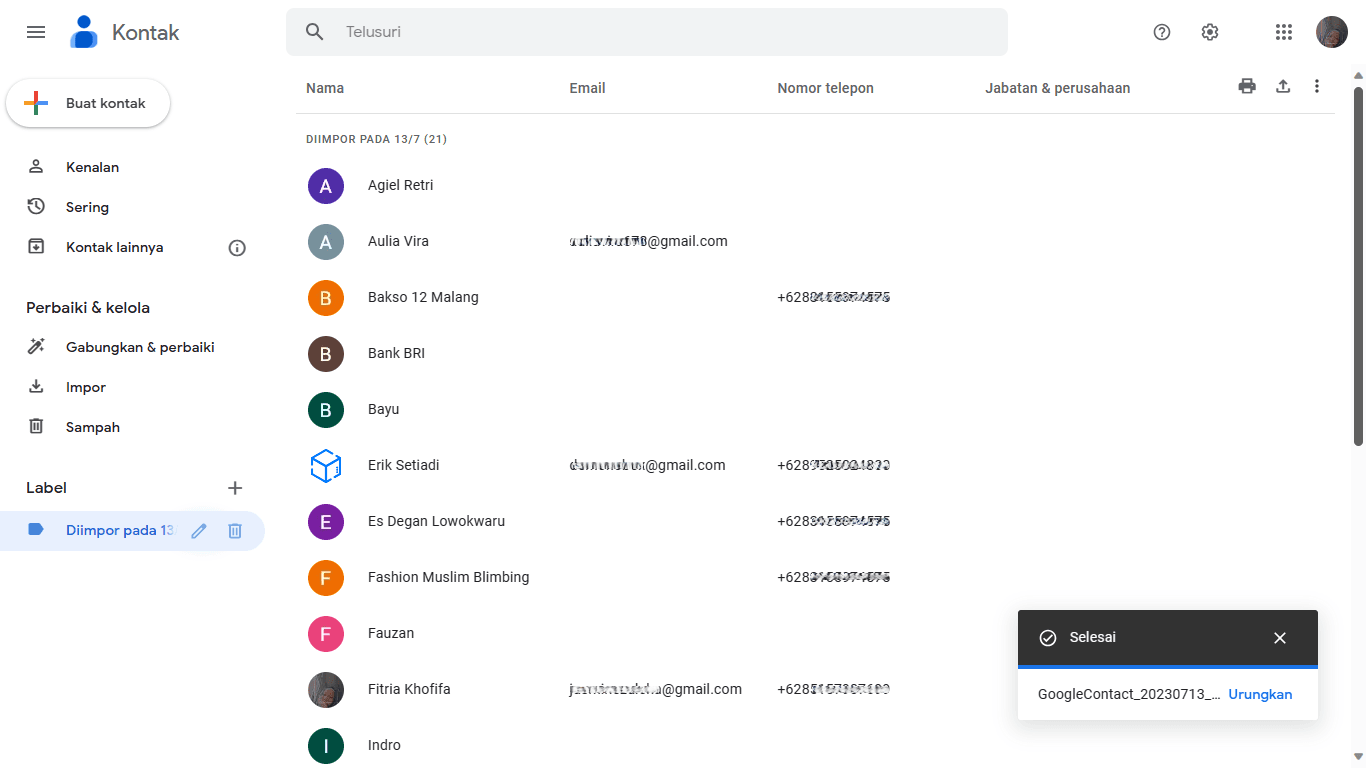
4. The data will be displayed, select the data and click the icon [  ] To add a contact to your Google account.
• Facebook Audiences: Used to download contact data in Excel or CSV format, making it easier for you to import contact data into Facebook audiences.
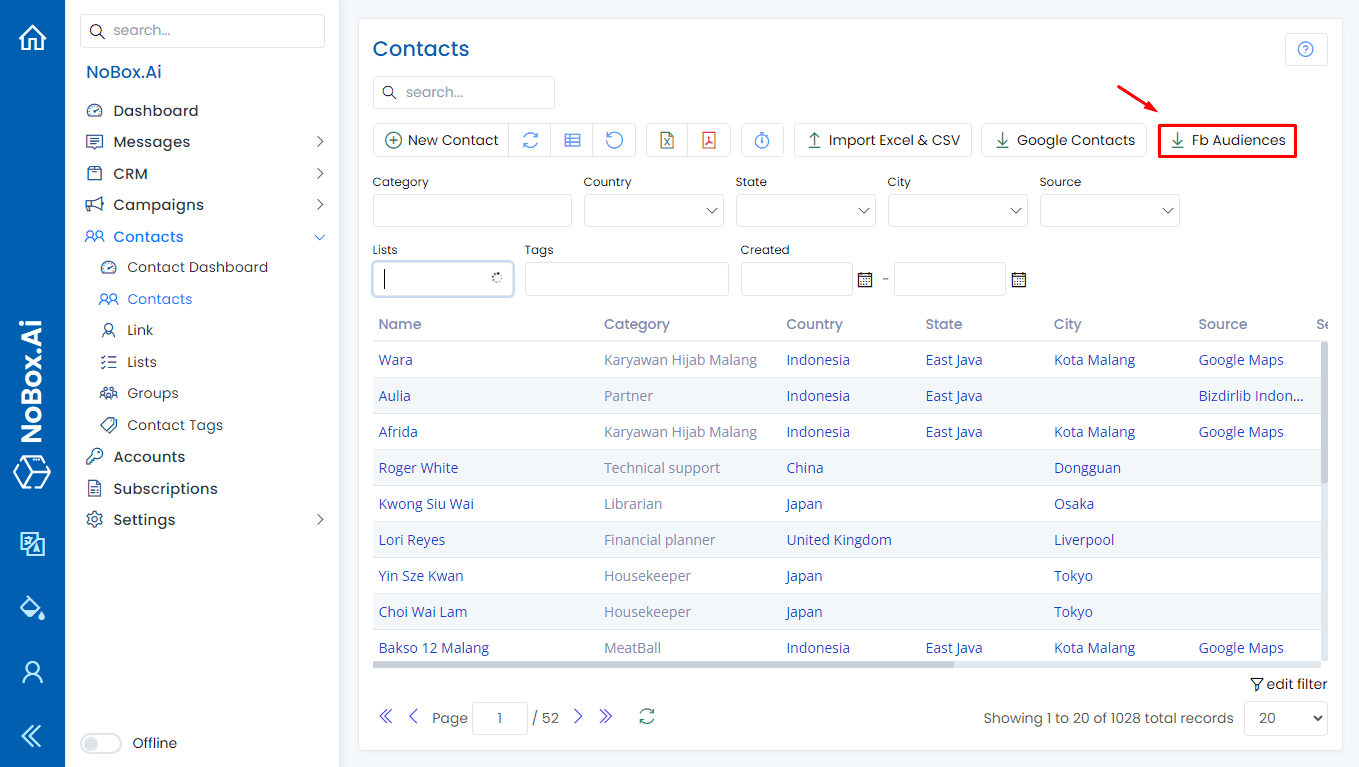
New Contact
To add contact data, click the [Contacts]➔[New Contact] menu. A [New Contact] dialog will appear. Then, fill in the required fields in the dialog.
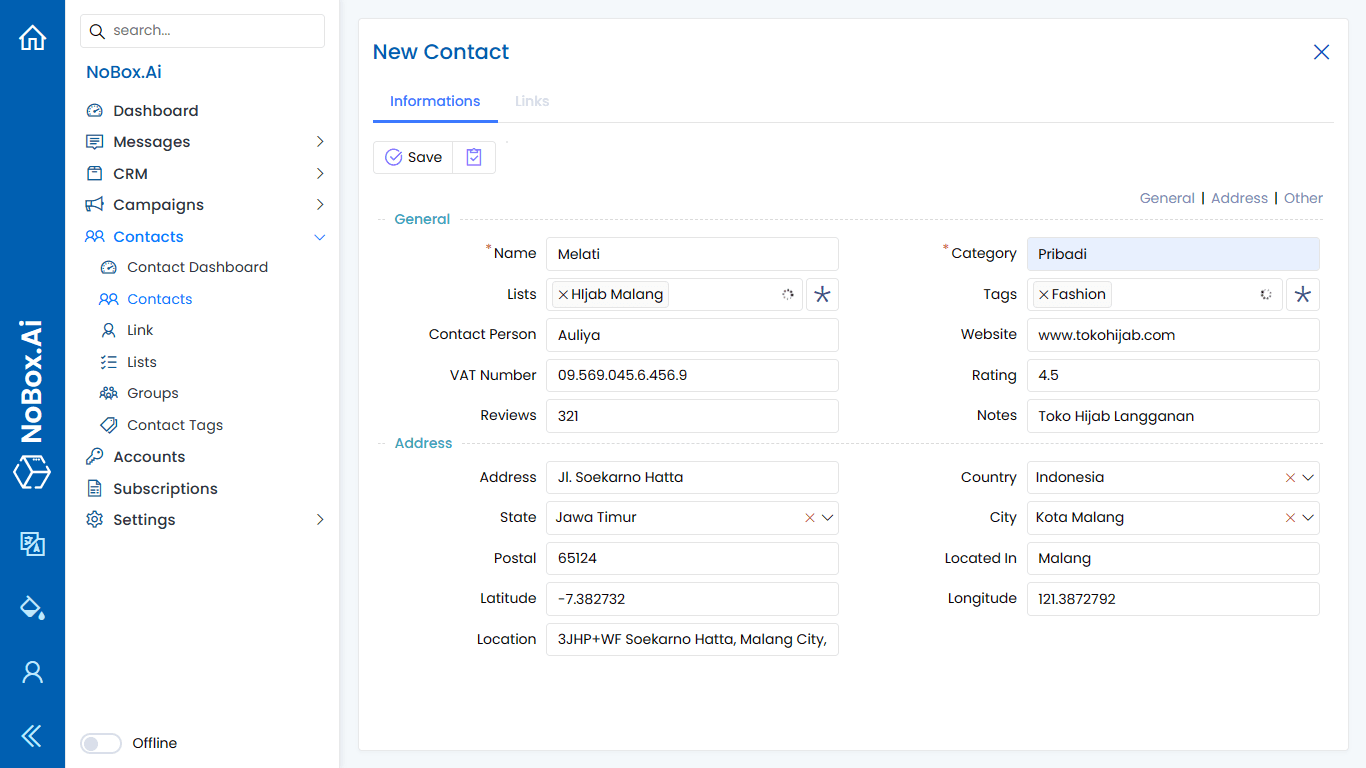
| Data Entry | Description | Example |
|---|---|---|
| Name | Contact Name | Erik Setiadi |
| Category | Category | General |
| List | Fill the list | Partner |
| Tag | Fill the tag | Priority Customer |
| Contact Person | Name of the person related to the contact. | - |
| Note | Contact Note | - |
| Link | Contact Accounts | Email, WhatsApp, Shopee.co.id |
| Address | Contact Adress | Jl. Akordion |
| Country | Select Country | Indonesia |
| Province | Select Province | Jawa Timur |
| City | Select City | Malang |
| Post | Enter postal code | 65124 |
If you have completed all the fields, click [Save] to save the new contact data you have just created.
Link
The link is used to store contact accounts such as WhatsApp numbers, Email, Telegram, etc.
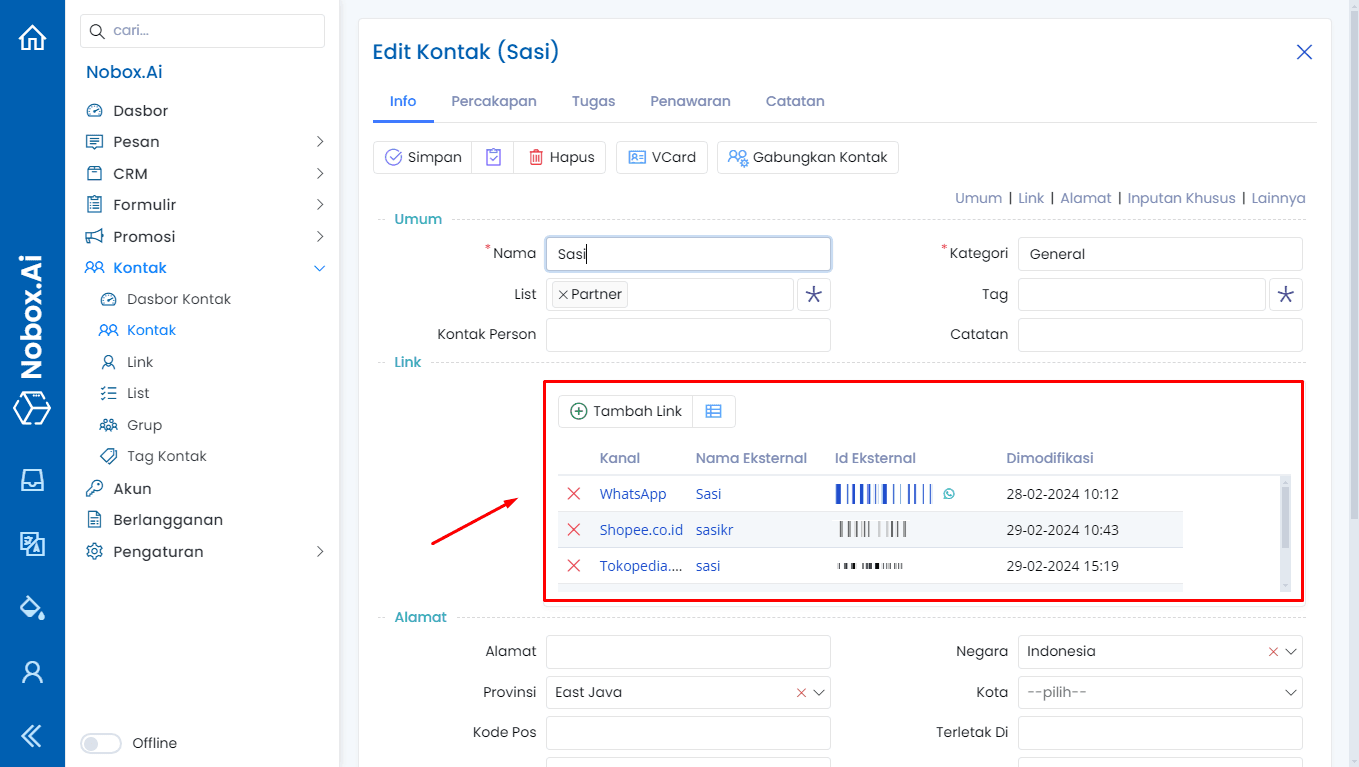
To add a data link, please click [New Link] and a dialog box [New Link] will appear. Then, fill in the fields within the dialog.
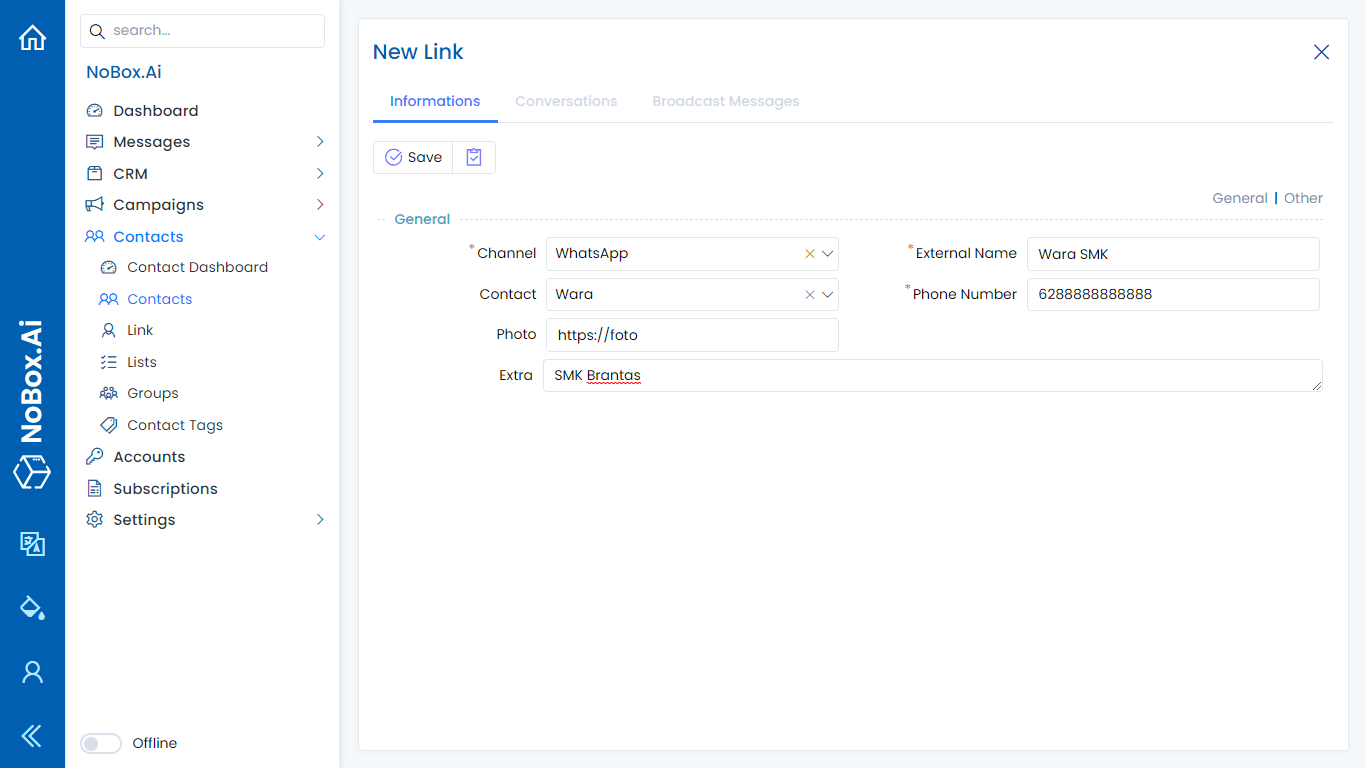
| Data Entry | Description | Example |
|---|---|---|
| Channel | Select Channel | |
| Eksternal Name | Eksternal link name | Sasi Email |
| Id Eksternal | Fill in with phone number, Shopee ID, etc., according to the channel options. | sasi@gmail.com |
| Id Conversation | Id conversation | - |
| Photo | Fill in url photo | - |
| Additional | Enter additional information | - |
If you have completed all the required fields, click [Save] to store the newly created link data.
Edit And Delete Data Link
To edit a data link, first select the data you want to edit. Edit your data and click [Save] to save the changes.
To delete a data link, select the data you want to remove, then click [Delete]. A confirmation dialog will appear asking if you wish to delete the data. If yes, click [Yes], otherwise click [No].
vCard
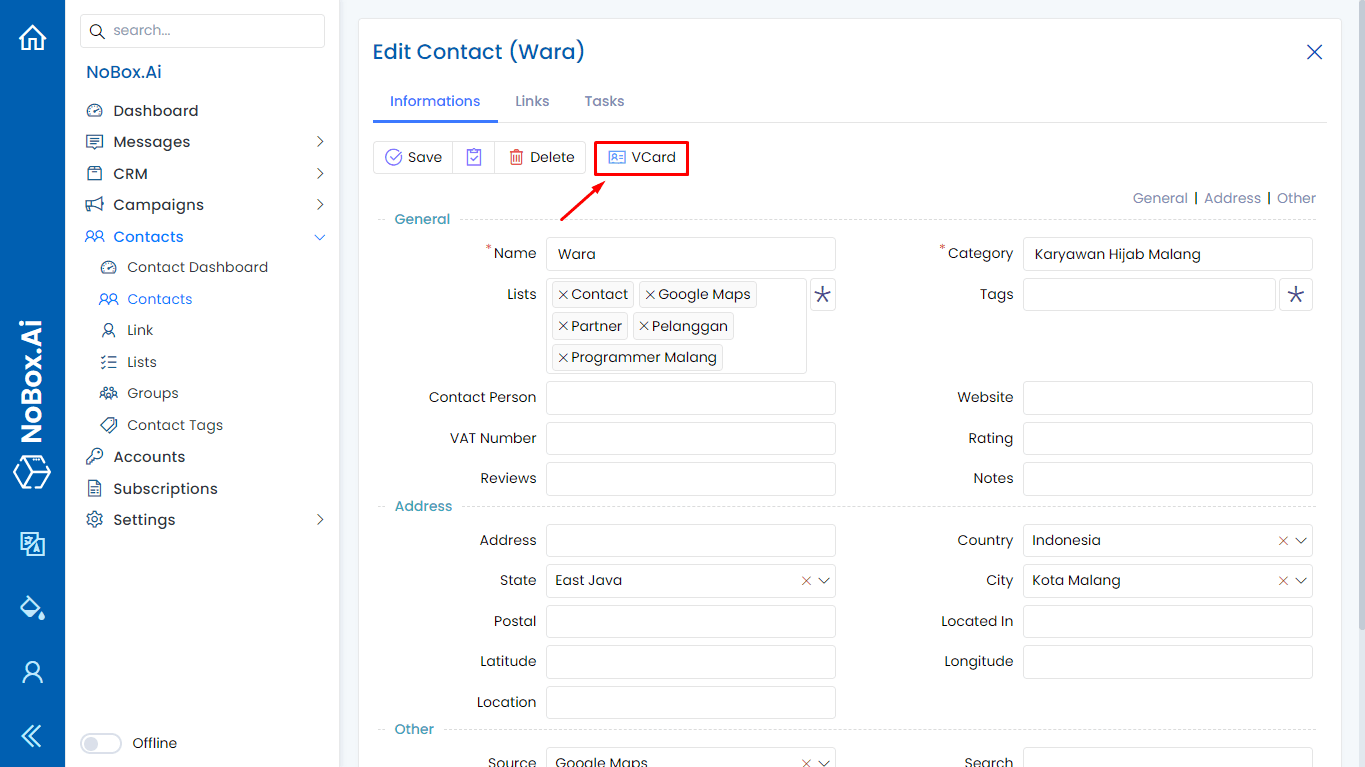
vCard is a feature that allows you to send contact information in a format that's easily readable in other email programs. vCard files are saved as .vcf files.
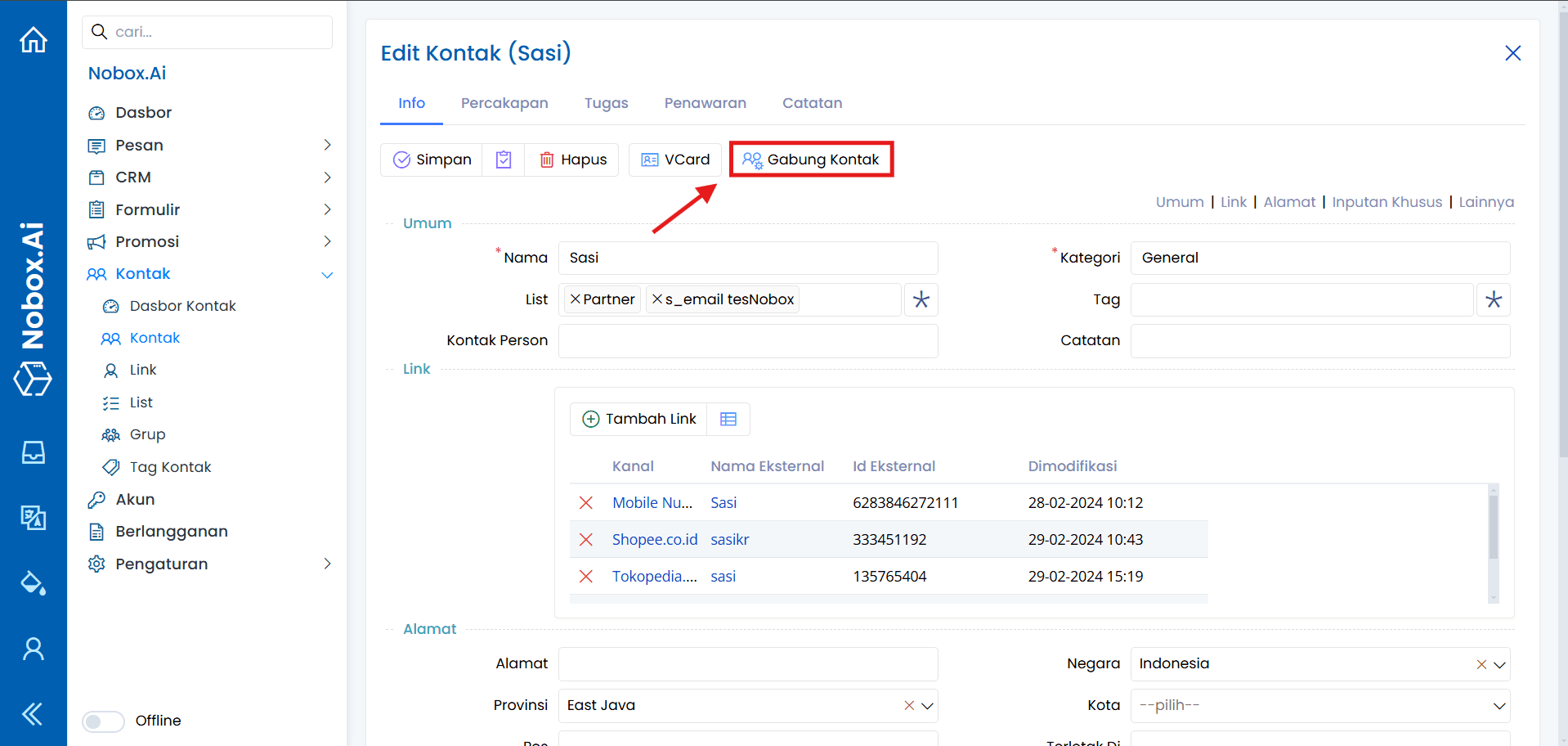
Merge Contacts
Features that are useful in contact management to prevent duplication and ensure clean and organized data, minimizing clutter and enhancing efficiency in managing contact lists.
Conversation
The "Conversations" tab is used to store all conversations with contacts associated with conversations that have the status of new, in progress, and completed. Thus, all unarchived conversations will be monitored with connected contacts.
.png&w=3840&q=75)
Task
The "Tasks" tab is used for task management related to the contact.
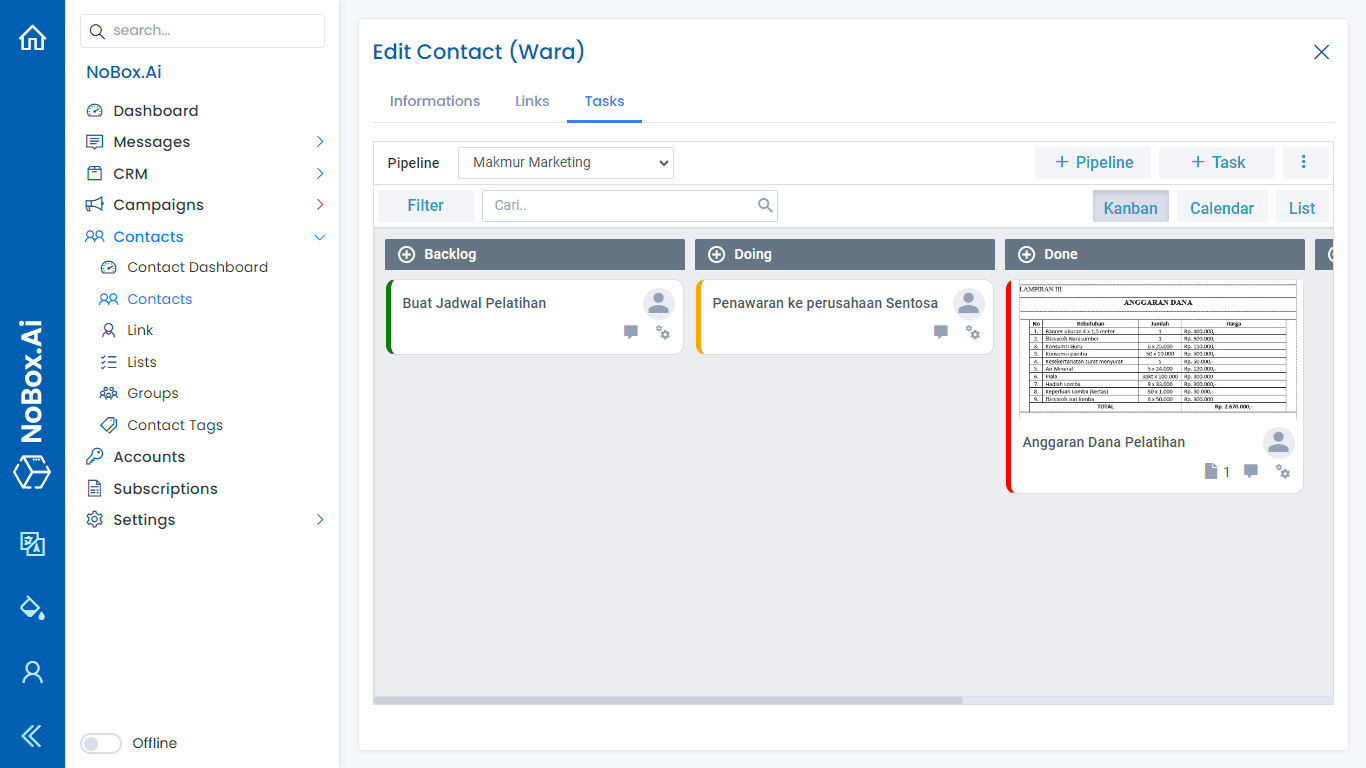
New Task
To add task data, please click [  ] A [New Task] dialog will appear. Then complete the fields in the dialog.
Complete the necessary fields, as exemplified below:
| Data Entry | Description | Example |
|---|---|---|
| Name | Task Name | Sent Campaign Message |
| Detail/Plan | Task Details or Plan | Send a broadcast to each customer in August. |
| Next Steps/Outcome | Next steps or task results | Monthly Data Recap |
| Attachment | Task attachment | - |
| Owner | Task Owner | Wulan Septi |
| List | Task list | Backlog |
| Category | Task category | Campaign |
| Priority | Priority Level | Urgent |
| Tag | Task tag | Campaign, Marketing |
| Start Date | Start deadline | 02-08-2023 |
| End Date | End deadline | 07-08-2023 |
| Contact | Contact the person responsible for the task. | Wara |
| Company | The company that undertakes the task | PT. Indodrink |
| Transaction | Offers related to the task | Offers Wara Indodrink |
If you have completed the entries, click [Save] to save the task data you just created.
Edit And Delete Task Data
To edit a task's data, first select which data you want to edit. Edit your data and click [Save] to save the changes.
To delete a task data, select the data you want to delete, then click [Delete]. A confirmation dialog will appear asking if you want to delete the data. If yes, click [Yes] if not, click [No].
Offer
Offers is the tab used for managing deals related to that contact.
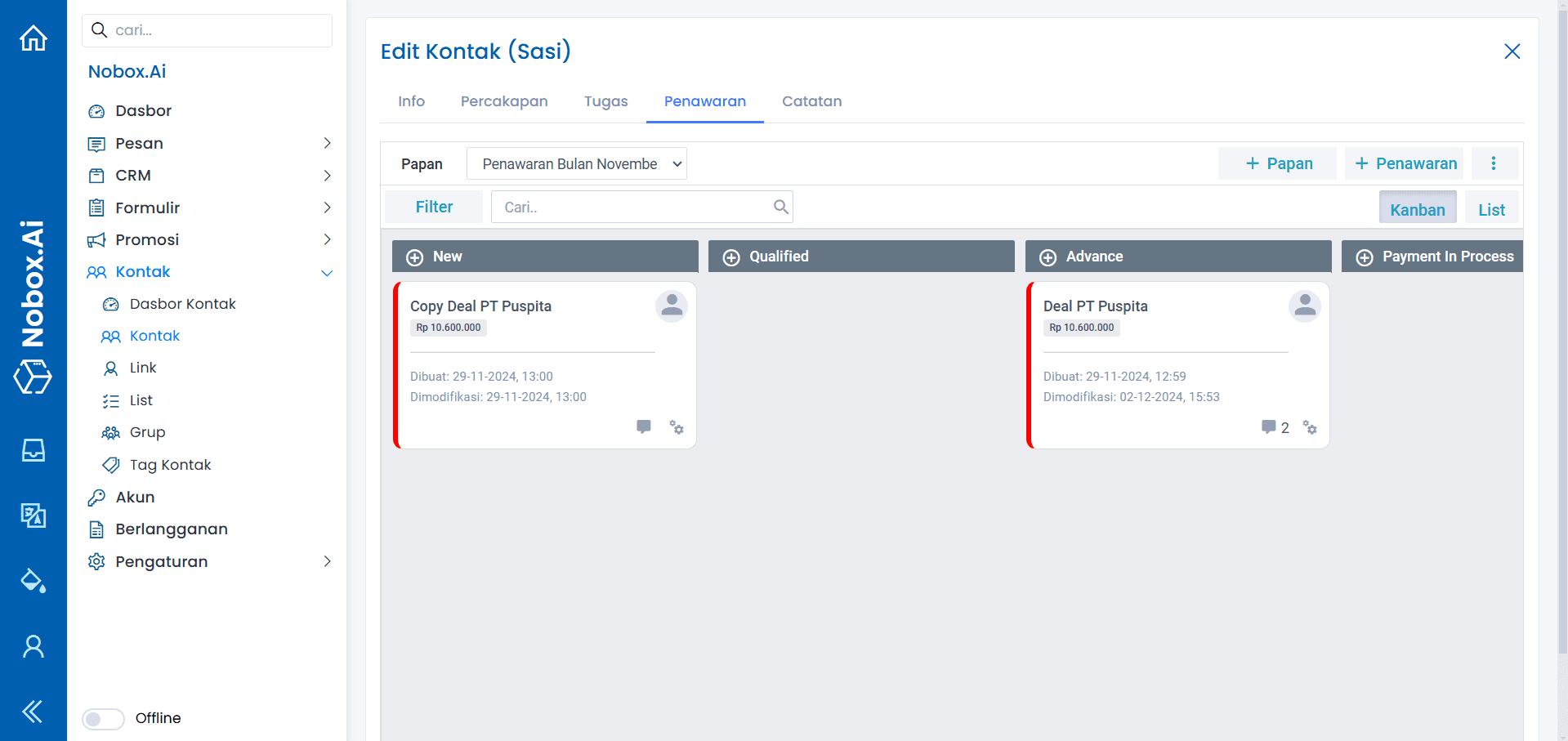
New Offer
To add offer data, please click [  ] When the dialog [New Offer] appears, fill in the necessary fields in the dialog.
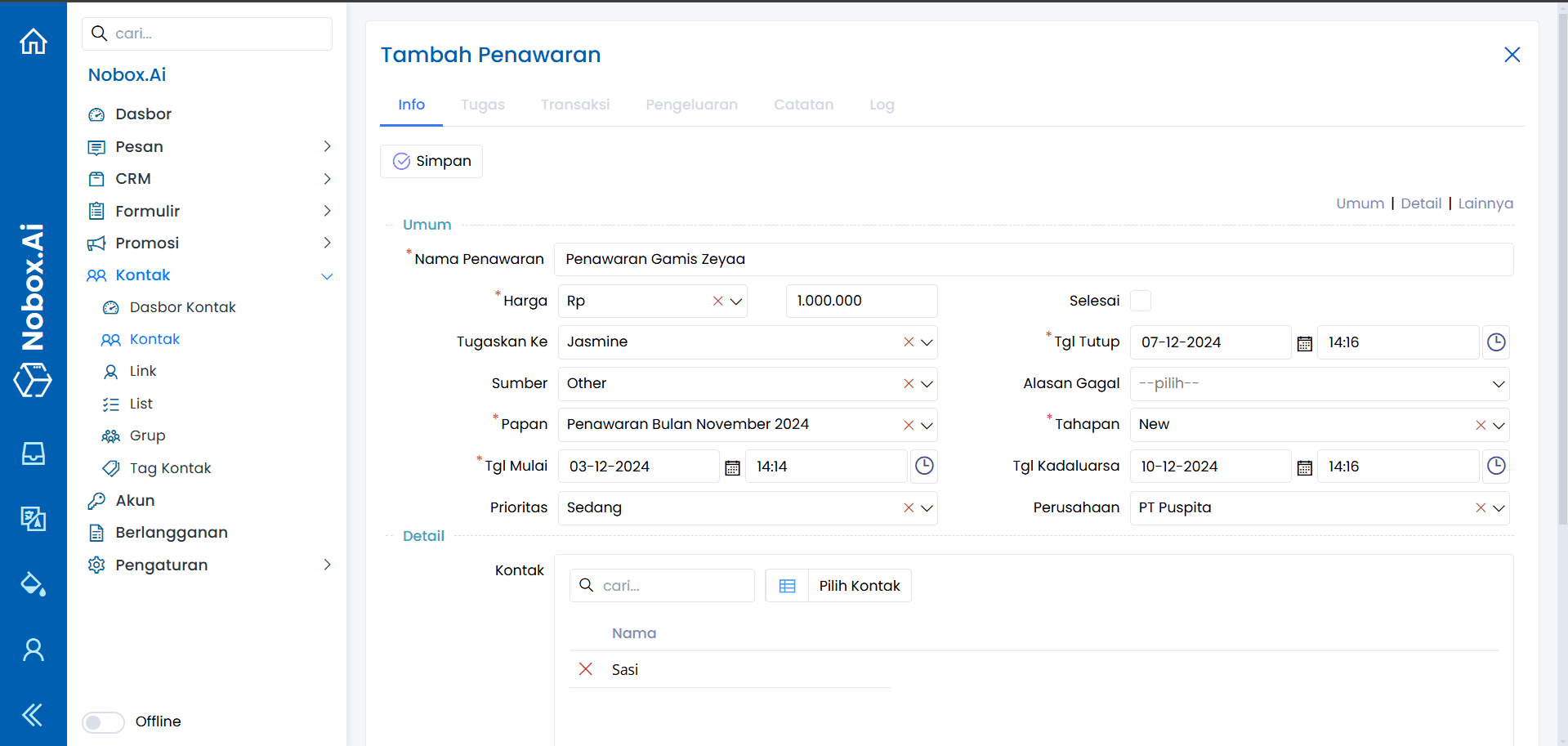
Fill in the required information, as shown in the following example:
| Isian | Uraian | Contoh |
|---|---|---|
| Offer Name | Deal Name | Penawaran Gamis Zeyaa |
| Price | Agreed Price | Rp 1.000.000 |
| Assign to | Assigned to | Jasmine |
| Closing Date | Closing Date | 07-12-2024 |
| Source | Search | Other |
| Reasons for Failure | Reasons for Proposal Failure | - |
| Board | Board options | November 2024 Offer |
| Stages | Stages | Sedang |
| Start Date | Start Date | 03-12-2024 |
| Expiration Date | Expiration Date | 10-12-2024 |
| Priority | Priority Level | Medium |
| Company | Company Agreement | PT. Puspita |
| Contact | Related contact list | Sasi |
| Product | Product List | Gamis Zeyaa |
If you have completed the fields provided, click [Save] to save the newly created proposal data.
Edit And Delete Offer Data
To edit a bid data, first select the data you wish to edit. Make your edits and click [Save] to save the changes.
To delete an offer data, select which data you want to delete, then click [Delete]. A confirmation dialog will appear asking if you want to delete the data. If yes, click [Yes]; if not, click [No].
Notes
Notes is one of the features of Nobox.Ai used to create annotations related to the contact data.
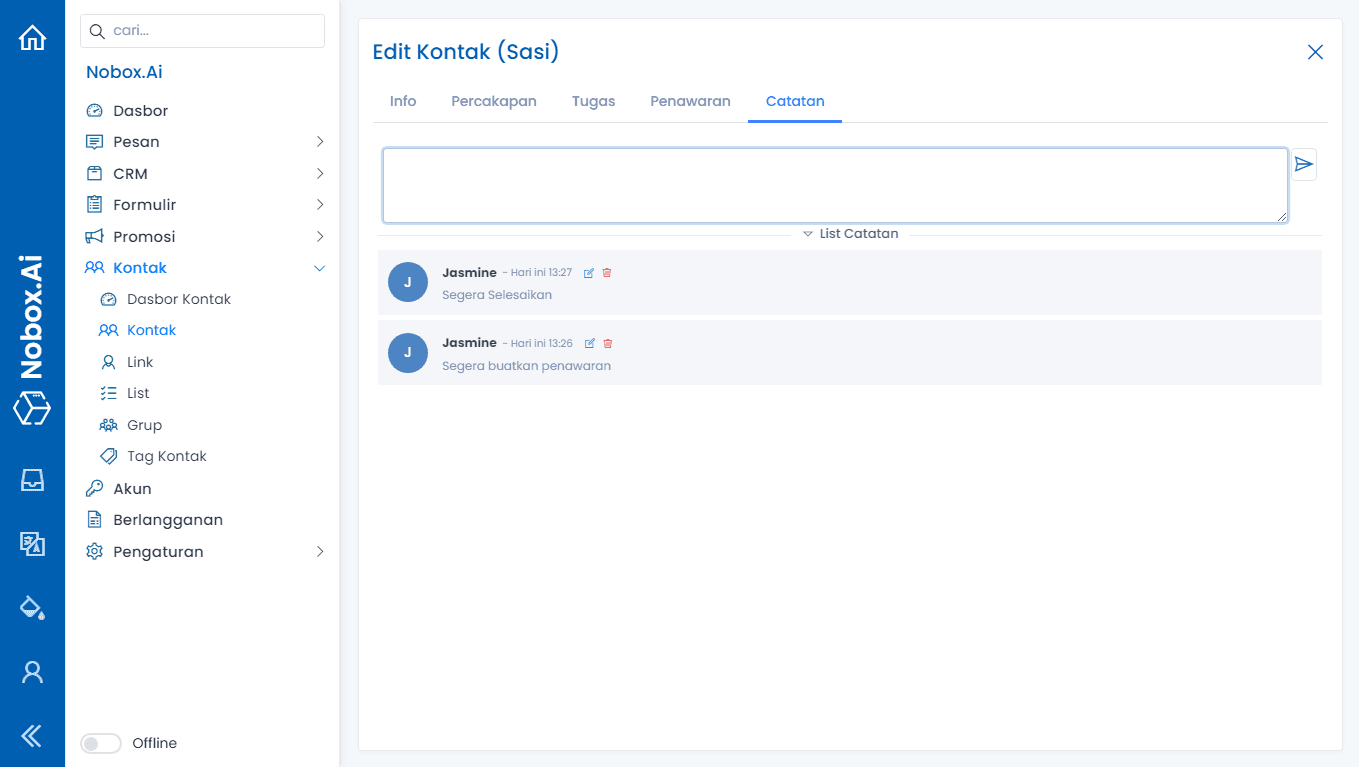
New Notes
To create a note, you can type directly in the section [  ]. If you have filled out the notes, please click the button [
  ] to store records.
Edit And Delete Notes Data
This feature can only be used by NoBox Supervisors. Agents can add notes, but they cannot edit or delete note data.
To edit a record, please click the icon [  ] On the side of the note you want to edit, update the data and click the submit button or press enter on your keyboard to save the changes.
To delete record data, please click the icon [  ] To delete a note, click the side of the note you wish to remove. A confirmation dialog will appear asking if you want to delete the note. Click [Yes] to proceed or [No] if you decide against it.
Edit And Delete Contact Data
To edit a contact, please first select the data you wish to edit. Edit your data and click [Save] to save the changes.
To delete a contact, select the contact you want to delete, then click [Delete]. A confirmation dialog will appear asking if you want to delete the data. If yes, click [Yes] if not, click [No].
If you have any issues or difficulties related to Nobox.Ai, please contact us through Support Ticket